
To create AI images for free in 2026, the best tools are Google Gemini (Nano Banana), ChatGPT (GPT Image), Microsoft Copilot, Adobe Firefly, Leonardo AI, Ideogram and Perplexity. They all start from a text description and offer a free plan. The real difference is not quality: it is the daily limits, the watermark and the commercial use rights.
I tested the same prompt on all of these tools, and the conclusion is always the same: “free” is a word that hides a lot. There is real free, the kind you use every day without thinking about it. There is symbolic free, two or three images and then you stop. And there is free with a catch: you can generate, but you cannot sell what you generate, or a watermark stays stamped on it that you cannot remove. In this guide I tell you, tool by tool and with numbers verified in July 2026, how free it really is, whether you can work with it and what stays written inside the image.
I am Erika Taranto and I generate AI images and videos for a living. I am not giving you yet another copy-pasted list. I will tell you what I use myself, where each of these tools stumbles and how to choose based on what you need to do with it.
What “free” really means
Before looking at the individual tools you need an honest map. When you read “free AI image generator”, that free can mean three very different things, and understanding them saves you from picking the wrong tool.
Unlimited, genuinely usable free. This is the case of anyone with a graphics card who runs open models (FLUX, Stable Diffusion) locally: no daily limit, no watermark, no account. On the cloud side, Gemini’s free plan comes close, with a daily cap high enough to cover normal use.
Symbolic free. You can try, but a few images and then you stop. ChatGPT on the free tier allows a handful of generations every 24 hours, Adobe Firefly works in monthly credits, Ideogram in weekly credits. Perfect for a test, awkward for ongoing work.
Free with a catch. Here the cost is not in images, it is in the conditions. Microsoft Copilot lets you generate for free but on the free plan use is personal only, not commercial. Adobe Firefly is the cleanest on the training side, but the legal copyright indemnification, the guarantee that covers you if someone challenges the image, only applies to paid plans. And then there is the watermark, which on some tools stays stamped on.
The three questions I always use, and that you should ask yourself too, are: how many images per day for real, can I work with it (commercial use), and what stays inside the file (watermark or invisible signature). You will find them at the end in the comparison table.
How I tested them
To compare them honestly I used the same prompt on all of them, changing only the interface. A medium-complexity prompt, with a subject, a setting, a style and a request for text inside the image, because readable text is still the point where many generators collapse. I looked at four things: faithfulness to the prompt, text rendering, speed and what happens when I try to download and use the result.
A word of warning about freshness. This sector changes every month: models that disappear, free limits that go up and down, prices that shift. I verified everything in July 2026 and where a number is uncertain I say so clearly. If you are reading this guide months later, double-check the free limits on the official sites, they are the most volatile part.
1. Google Gemini (Nano Banana): the most generous free tier
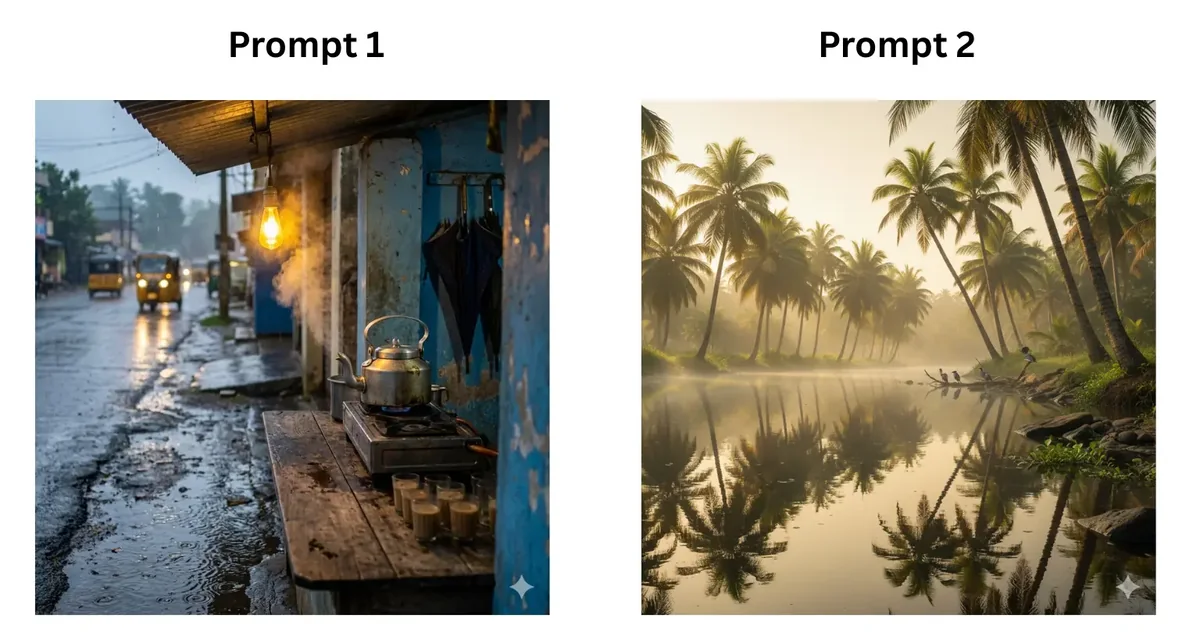
If you ask me which is the best free AI image generator for everyday use, today I answer Gemini. “Nano Banana” is simply the nickname of the native image generation models inside Gemini, not a separate product. On the free plan you work with Nano Banana 2 (Gemini 3.1 Flash Image), which since February 2026 is the default model in the app.
How to use it. Go to gemini.google.com, sign in with your Google account, open the “Create images” tool or simply type “create an image of…” in the bar. In about ten seconds you have the result, and the most convenient thing is that you can edit it by talking: “make it nighttime”, “add a dog”, “remove the background”. Conversational editing is its strong point. You need an age-verified account, and the first time it can take a few hours.
Real free limit. On the free tier you generate around 20 images per day at 1K resolution (unofficial number, variable depending on load, verified July 2026). Then there is the top version, Nano Banana Pro (Gemini 3 Pro Image, released on November 20, 2025), which brings 4K, world knowledge and superior in-image text: but on the free tier it has been cut to about 2 generations per day. To really take advantage of it you need a paid plan.
Commercial use. According to the Gemini apps terms, the output belongs to the user and commercial use is generally allowed. Watch out for one detail: on the free plan your prompts can be used for training, so for client work consider a paid plan and do not enter sensitive data. This is not legal advice, check the current terms.
Watermark. All images carry SynthID: an invisible signature plus a visible indicator on the free plan. Removing it violates the terms. Inside Gemini there is also the flip side, the SynthID Detector: you upload an image and it tells you whether it was generated by AI.
Who it is best for. For those who want the most usable free quota every day, editing by talking, and who are not bothered by the small visible indicator. I wrote a dedicated guide to creating images with Gemini step by step, and one on Nano Banana Pro and its pricing if you need the professional version.
One note that confuses everyone: Imagen is not Nano Banana. Imagen was Google’s old separate text-to-image family, now being phased out: Imagen 3 has already been switched off and Imagen 4 closes on the Gemini API on August 17, 2026. Google has converged everything onto Nano Banana. If you were looking for “Imagen 3”, in practice today you use Nano Banana inside Gemini. I cover it in more detail in the page on Google’s Imagen.
2. ChatGPT (GPT Image): the easiest to start with
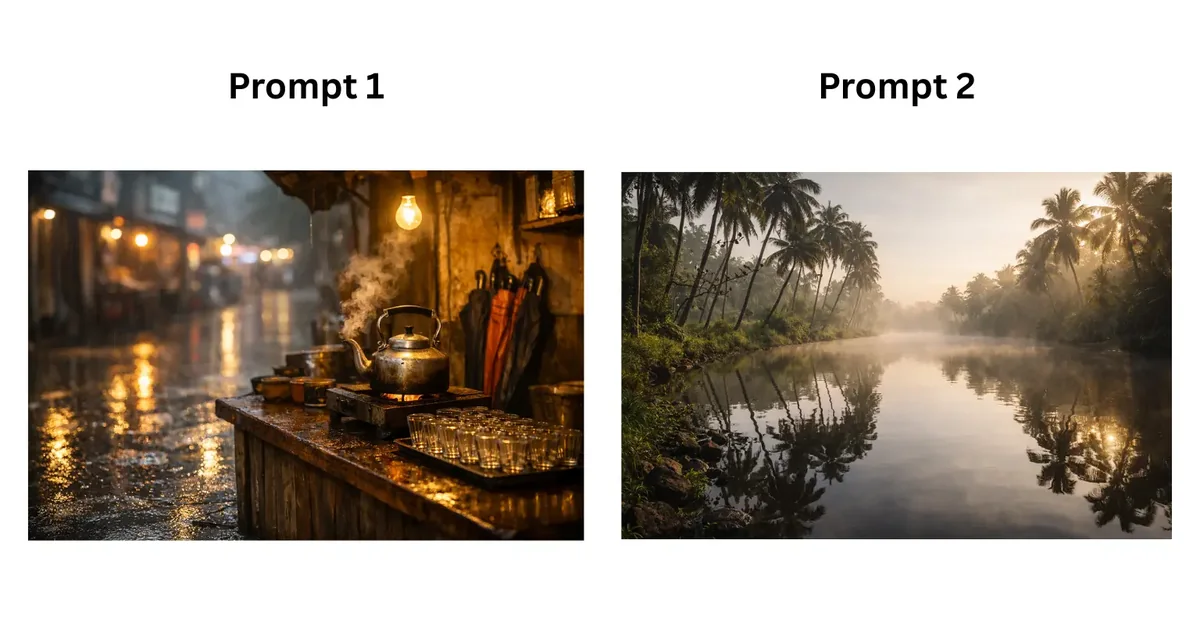
ChatGPT is the most natural entry point, because you get there already talking with the assistant. An important clarification: ChatGPT no longer uses DALL-E 3. Since March 2025 it generates natively, first with GPT-4o and today with the GPT Image family (the latest, gpt-image-2 “ChatGPT Images 2.0”, was released on April 21, 2026). DALL-E 3 is officially history: the snapshots were removed from the OpenAI API on May 12, 2026. If you want the full context I covered what happened to DALL-E 3.
How to use it. On chatgpt.com type “create an image of…” or use the button below the bar, choose the format (square, vertical, panoramic) and send. Native generation remembers the context of the conversation: you can upload a photo and ask for edits, iterate without losing coherence, use the Select tool to retouch only one portion. It also generates transparent-background PNG, very handy for logos and e-commerce products.
Real free limit. On the free plan you use the Instant mode, open to everyone, with an indicative cap of around 2-3 images within 24 hours (OpenAI does not publish the official number, verified July 2026). The Thinking mode, which reasons and searches the web before generating, is reserved for paid plans.
Commercial use. According to OpenAI’s terms the output belongs to the user and commercial use is allowed: marketing, products, merchandising. The usual two caveats apply: a purely AI image in the US is not protectable without substantial human modification, and you are responsible if you use third-party trademarks or faces.
Watermark. No visible watermark stamped on the image. It is one of the reasons why social content creators like it.
Who it is best for. For beginners, for those who want well-written text inside the image (here GPT Image is among the best, even with non-Latin alphabets) and for reasoned conversational editing. The low free limit makes it great for trying, less so for producing at volume. You will find everything in my guide to ChatGPT for images.
3. Microsoft Copilot / Designer: watch out for commercial use
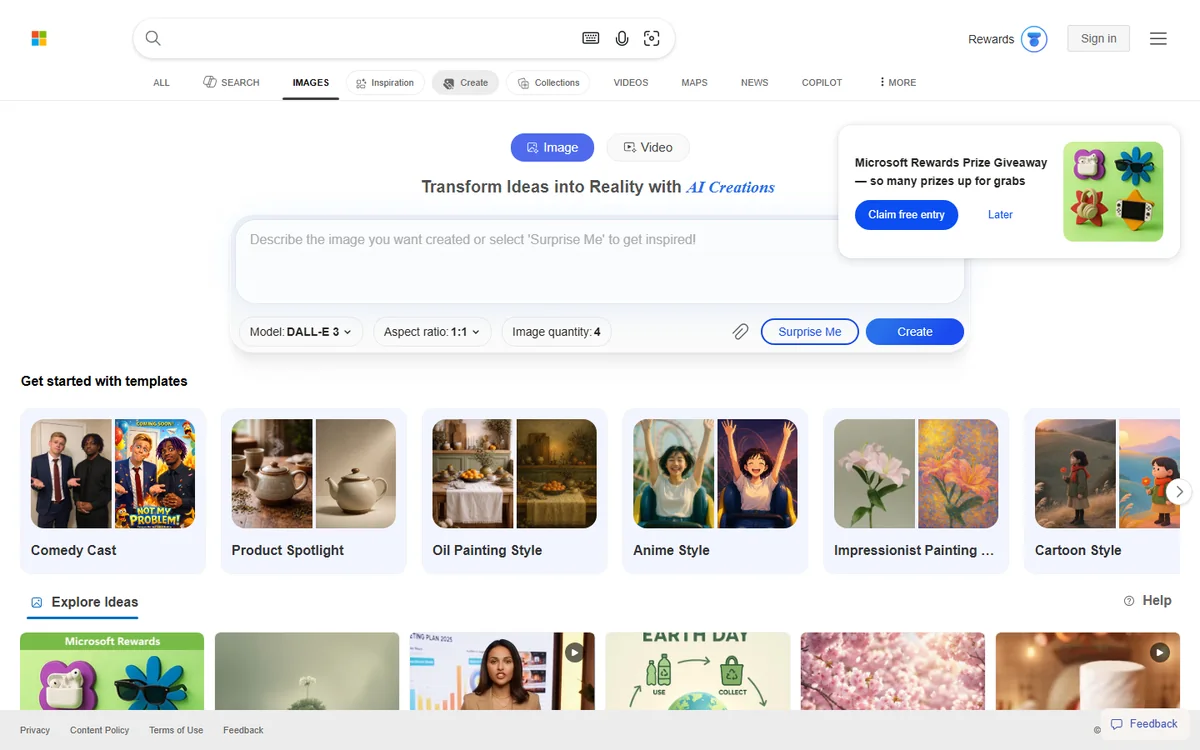
Microsoft Copilot (which incorporates the experience of the former Bing Image Creator and Designer) is very convenient: it is integrated into Windows, Edge and the web, and you generate images by typing a prompt in the chat. It looks like the perfect free option. There is, however, the most important catch of this entire guide.
How to use it. Open Copilot from copilot.microsoft.com or the app, type the description and receive the images. The system uses Microsoft-branded generation models based on OpenAI technology. The interface is localized and requires no technical skills.
Real free limit. On the free tier you get “boosts” that speed up generation, in limited number (sources conflict between a daily and a weekly cap, so I report it as variable: check it live, July 2026). Once the boosts run out you keep generating, but more slowly.
Commercial use. Here is the problem. On the free plan Microsoft’s conditions generally allow personal, non-commercial use only. Translated: that image for the company post or the client’s flyer, technically, on the free tier you cannot use it. It is the classic catch nobody tells you about: free to play, not to work. For commercial use you need the appropriate plans or licenses. Always check the current terms.
Watermark. No clearly visible watermark stamped on, but provenance metadata remains. The rights issue weighs more than the watermark in this case.
Who it is best for. For private use, for those who live inside the Windows and Microsoft 365 ecosystem, for prototyping personal ideas. It is not the right choice if you need to produce images for a business, unless you move to a commercial license.
4. Adobe Firefly: the safest on licenses (but read the caveat)
Adobe Firefly was born with a different promise from the others: it is trained on licensed content (Adobe Stock and public domain material), not on images indiscriminately scraped from the web. For those who work with brands and fear legal trouble, it is a strong argument. But here too the free tier has its conditions.
How to use it. Go to firefly.adobe.com with a free Adobe account, type the prompt, choose style and aspect ratio. It is also integrated inside Photoshop (Generative Fill) and the other Creative Cloud tools, and that is where it shines, as an assistant inside an already structured creative workflow.
Real free limit. Firefly works on generative credits. On the free plan you get a limited monthly package (indicatively a few credits per month, verified July 2026): enough for a few tests, not for intensive use. Once the credits run out, generation slows down or stops until you move to a plan.
Commercial use. Here is the detail almost nobody explains. Firefly is “commercial-safe” in terms of training data, but the IP indemnification, the legal guarantee with which Adobe covers you in case of a copyright dispute, only applies to paid plans, not the free one. So “safe” on the free tier is only half true: the model is clean, but the contractual protection is not there. Check the terms of your plan.
Watermark. No visible watermark stamped on, but Firefly applies Content Credentials, provenance metadata attached to the file declaring that the image was generated or edited with AI.
Who it is best for. For those who already work in Creative Cloud, for those who need generative fill inside Photoshop and for those who want maximum peace of mind about the origin of the data. For serious commercial work the paid plan is the right move, to get the indemnification.
5. Leonardo AI: character consistency
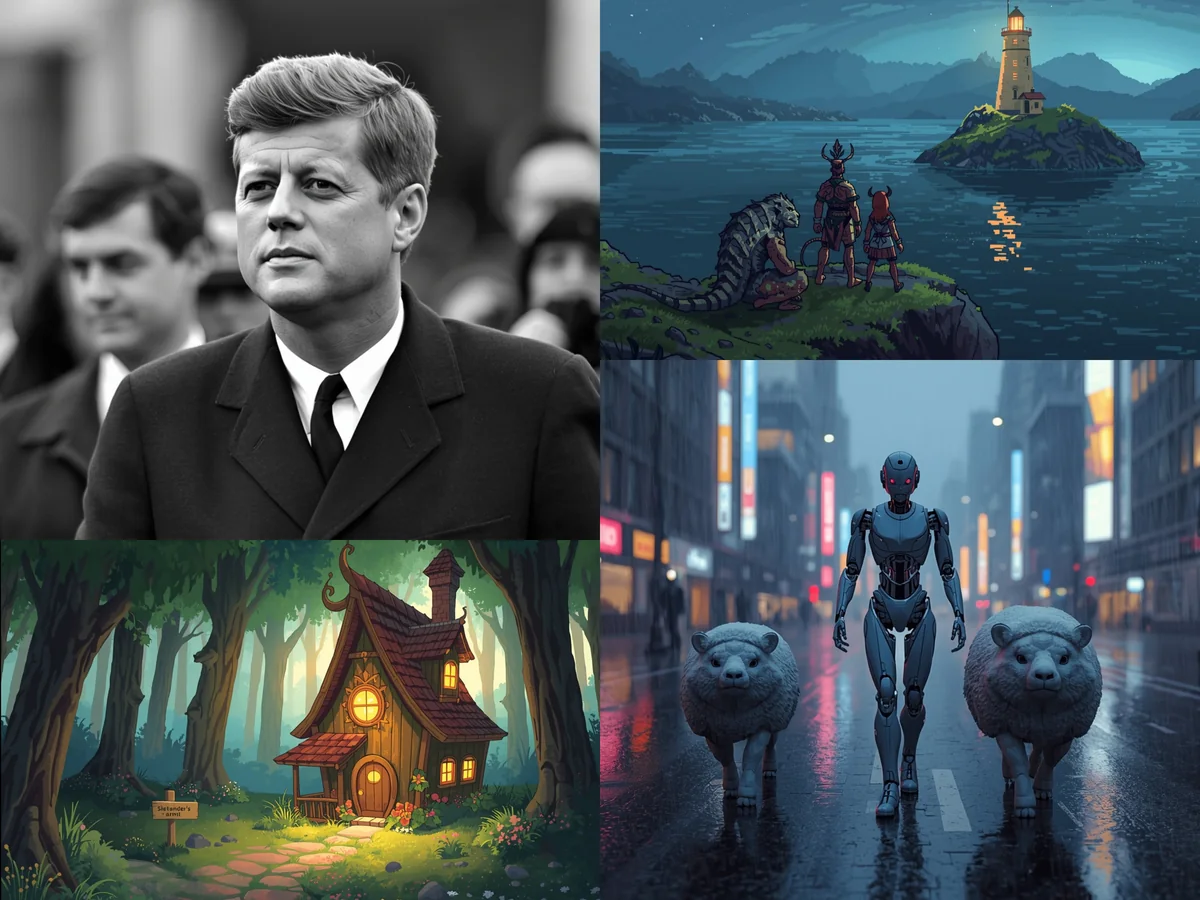
Leonardo AI is loved by the creative community, especially by those doing concept art, game design and illustration. Its strength is consistency: keeping the same character or the same style across multiple images, something precious when you need to build a visual world and not a single lucky shot.
How to use it. You sign up on leonardo.ai, choose a model among the many available (there are models specialized for different styles), write the prompt and adjust the parameters. The interface is richer in controls than Gemini or ChatGPT: it sits halfway between the simplicity of an assistant and the depth of a pro tool.
Real free limit. The free plan assigns around 150 tokens per day (verified July 2026). Each generation consumes tokens based on resolution and settings, so the actual number of images varies: with light settings you make several, with heavy generations many fewer. It is a daily budget that recharges, not a hard cap on images.
Commercial use. The conditions change depending on the plan: check the free plan terms of use before using the outputs for work, because on platforms of this kind the free tier often makes images public in the community gallery.
Watermark. On the free plan there is generally no visible watermark stamped on, but images can be public. Check the privacy settings of your plan.
Who it is best for. For illustrators, concept artists and creators of serialized content who need consistency and fine control, more than generating one image and moving on.
6. Ideogram: the king of text inside the image
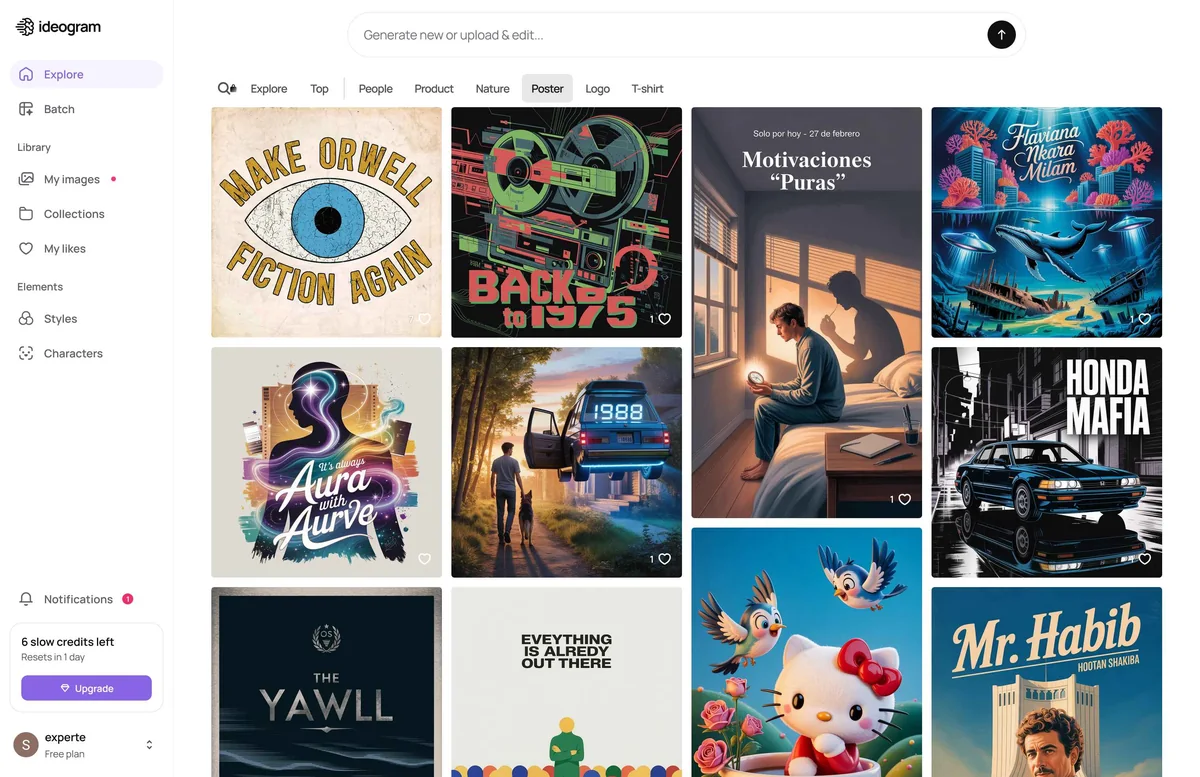
If your problem is writing text inside the image, typography, logos, posters, lettering on signs, Ideogram was born exactly for that. It is the tool that historically best solved the Achilles’ heel of all generators: letters turning into scribbles. Today GPT Image and Nano Banana Pro also handle text well, but Ideogram remains a specialist benchmark.
How to use it. You sign up on ideogram.ai, write the prompt explicitly stating the text you want to appear (usually in quotes), choose the style and generate. There is also a “Magic Prompt” feature that automatically enriches your description.
Real free limit. The free plan works on weekly credits: indicatively around 10 credits per week (verified July 2026), which translate into a limited number of generations. It is designed for trying, not for continuous production.
Commercial use. As with the other services with a free tier based on a public gallery, check the free plan terms before using the outputs commercially. Often full commercial use is tied to paid plans.
Watermark. On the free tier images tend to be public in the gallery; check whether a mark or privacy option applies to your plan.
Who it is best for. For those who create posters, text logos, covers, graphics with prominent words. For typographic text inside the image it is one of the best choices around.
7. Perplexity: the generator inside the answer engine (with a big “but”)
Perplexity is first and foremost an answer engine, and image generation is an accessory feature. The point to understand right away: Perplexity does not have its own model. It acts as a router to other people’s models, in mid-2026 mainly Nano Banana 2 (Gemini), ByteDance’s Seedream and GPT Image. In practice it does not give you quality of “its own”, it gives you access to models you can already use elsewhere.
The big “but”. Since January 2026 Perplexity’s image generation has been blocked in Italy, even for paying Pro users, with a message like “not supported in your region”. Perplexity had mentioned a fix in progress, but as of July 5, 2026 the status is unconfirmed: before counting on it, try it live from your Italian connection. If you are in Italy and the feature is still blocked, this tool simply does not exist for you, and the alternatives above are the answer.
How to use it (where available). Type the prompt directly in the bar and the image is generated together with the answer. The model can only be chosen from the Pro plan, in Settings. The free plan is practically useless for images.
Real free limit. The free tier is not useful for generating; on Pro the limit is around 10 images per day (community estimate, unofficial, verified July 2026).
Commercial use. According to available sources commercial use would be reserved for the Enterprise plan; to be verified in the terms of use.
Watermark. It depends on the model Perplexity routes you to: if it is Nano Banana, the image carries SynthID as on Gemini.
Who it is best for. For those who already pay for Perplexity Pro, are not in Italy (or the feature has been unblocked) and want to generate without switching windows while researching. For everyone else, better to go straight to the underlying model. I dedicated a guide to generating images with Perplexity with the details and the status of the block.
Bonus for those with a GPU: FLUX and Stable Diffusion locally
There is one last category that roundups always forget, and it is the truly unlimited one. If you have a powerful graphics card (I work with an RTX 4090), you can install open models on your computer and generate locally: FLUX (by Black Forest Labs) and Stable Diffusion. Free, no daily cap, no account, no watermark, with your data never leaving your hardware.
They are used through interfaces like ComfyUI or Automatic1111. The learning curve is steeper than cloud tools, but the control is total: resolution, models, styles, plugins. A warning about licenses, because they are not all the same: some models are free even for commercial use (for example the FLUX schnell variant, under a permissive license), others are released for non-commercial use only (like FLUX dev). Check the license of the specific model you download before using it for work.
Who it is best for: for those who generate a lot, care about privacy, want zero limits and are not afraid of getting their hands dirty with configuration. It is the purest form of free that exists.
And Midjourney? I mention it as a benchmark for aesthetic quality, among the very best, but it does not enter this list for one simple reason: it has no free plan. It is paid only. Excellent tool, off topic for a guide about free tools.
Comparison table: best free AI image generators
Here is the summary with values verified in July 2026. Where a figure is volatile you will find it marked as variable.
| Tool | Quality | Free limit | Sign-up | Commercial use (free) | Watermark |
|---|---|---|---|---|---|
| Google Gemini (Nano Banana) | Excellent | ~20/day at 1K (variable) | Yes (Google account) | Yes (check ToS) | SynthID (visible on free) |
| ChatGPT (GPT Image) | Excellent | ~2-3/24h (unofficial) | Yes (OpenAI account) | Yes | None visible |
| Microsoft Copilot / Designer | Very good | Limited boosts (variable) | Yes (Microsoft account) | No, personal use only | None visible (metadata) |
| Adobe Firefly | Very good | Limited monthly credits | Yes (Adobe account) | Yes but no IP indemnification | None visible (Content Credentials) |
| Leonardo AI | Good | ~150 tokens/day | Yes | Check plan ToS | Images public on free |
| Ideogram | Good (text) | ~10 credits/week | Yes | Check plan ToS | Images public on free |
| Perplexity | Depends on model | Pro only (~10/day); Italy block | Yes | Enterprise only (to verify) | Depends on model |
| FLUX / Stable Diffusion (local) | Excellent | Unlimited | No (runs locally) | Depends on model license | No |
| Midjourney (benchmark) | Excellent | No free plan | Yes | Paid only | Paid only |
Which one to choose based on your use
There is no best free AI image generator in absolute terms. There is the right one for what you need to do. Here is how I choose.
Everyday use and lots of images. Google Gemini (Nano Banana). The daily cap is high enough not to think about it, editing by talking is very convenient. If the small SynthID indicator does not bother you, it is the most practical choice.
You are a beginner. ChatGPT. You talk to it the way you talk to the assistant, you do not have to learn any interface. Great also when you need well-written text inside the image.
You work with brands and fear legal trouble. Adobe Firefly, but on the paid plan, to get the IP indemnification. On the free tier it remains excellent for prototyping.
You need text, logos, posters. Ideogram for typographic text. Alternatively Nano Banana Pro or GPT Image, which today are very strong on text.
You do illustration or consistent characters. Leonardo AI, for consistency and fine control over parameters.
You want zero limits and maximum privacy. FLUX or Stable Diffusion locally, if you have the GPU. No cap, no watermark, your data stays yours.
Personal use in the Windows ecosystem. Microsoft Copilot works very well, as long as use stays personal and not commercial.
Tips for better prompts
The tool matters, but the prompt matters more. With the same tool, the difference between a mediocre image and a good one almost always lies in how you asked for it. Here are the tips I use every day.
1. Build the prompt in layers. Do not write “a cat”. Write subject, action, setting, style, lighting and framing: “a ginger cat asleep on a windowsill, warm sunset light, photographic style, close-up, blurred background”. The more layers you give, the less you leave to chance.
2. Be specific about style. “Watercolor style”, “1970s analog photography”, “flat vector illustration”. Style is the lever that moves the result the most. If you do not say it, the model chooses for you, usually toward the generic.
3. For text, put it in quotes. When you want lettering inside the image, state it clearly: sign that says “OPEN”. And choose the right tool: Ideogram, GPT Image or Nano Banana Pro handle text better than the others.
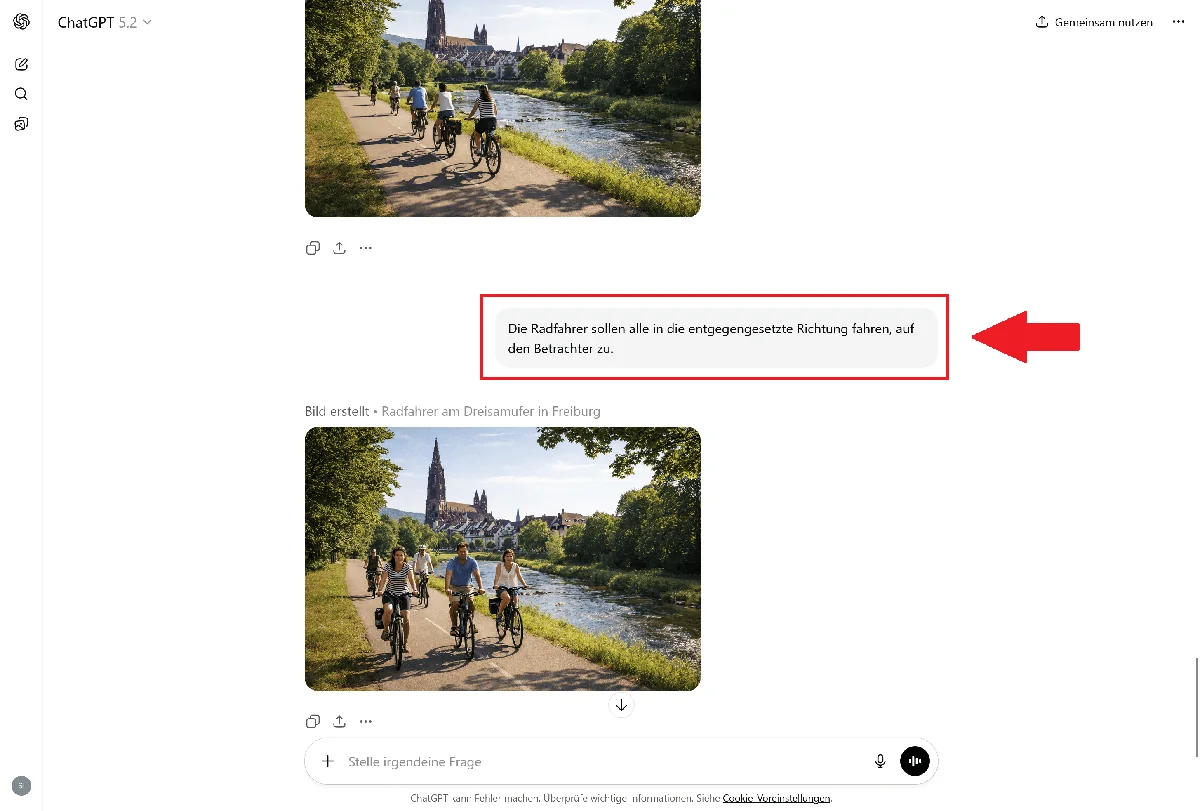
4. Iterate, do not restart. On conversational tools (Gemini, ChatGPT) do not throw away the result: correct it with words. “Darker”, “change the angle”, “remove the object on the left”. Build toward the result instead of hoping for the right shot on the first try.
5. Take care of framing and aspect ratio. Explicitly ask for the format (vertical for a social story, panoramic for a cover) and the framing (close-up, wide shot). A great image in the wrong format is still an image to redo.
In short
Creating AI images for free in 2026 is possible and within everyone’s reach, but “free” must always be read all the way through. Gemini is the most generous free tier for everyday use, ChatGPT the easiest to start with, Firefly the safest on licenses (on the right plan), Ideogram and Leonardo the specialist choices, Copilot excellent as long as it stays personal, Perplexity an accessory with the big question mark of the block in Italy. And if you have a GPU, FLUX and Stable Diffusion locally beat everyone on the limits front: they have none. Before choosing, look at your three questions: how many images per day, do you need to work with them, and what stays written inside the file.
Want images like these for your brand?
I use these tools every day for work: images, characters and AI commercials for brands. If you want to learn to use them with a workflow of your own, or you prefer me to make them directly for you, discover my services or write to me here.
Sources
- Google - Image generation with Gemini
- Google Developers - Gemini API pricing
- Google Developers - Image generation with the Gemini API
- The Keyword (blog.google) - Nano Banana Pro
- Google DeepMind - Gemini image generation models
- OpenAI Developers - Deprecations (DALL-E 3 retirement)
- OpenAI - Terms of use
- Microsoft Learn - DALL-E in Azure AI Foundry
Leave a comment
Comments are reviewed and approved before they appear.