ChatGPT creates images natively, no longer going through DALL-E 3. You write what you want to see, pick the format and in a few seconds you get an image you can edit with words, export with a transparent background and even use for work. The free plan is enough to try it; the limits and rules change between Free, Plus and Pro.
My name is Erika and I make a living generating images and videos with AI every day. ChatGPT is the tool I recommend most often to anyone starting from scratch, because it does not ask you to learn the syntax of a technical tool: you talk to it the way you would talk to an art director, and it understands. In this guide I show you exactly how it works today, in July 2026, with numbers I verified myself and without the hype I read around. It is part of the broader path on how to create images with AI for free, where I compare all the main tools.
How ChatGPT creates images today: native generation, no more DALL-E 3
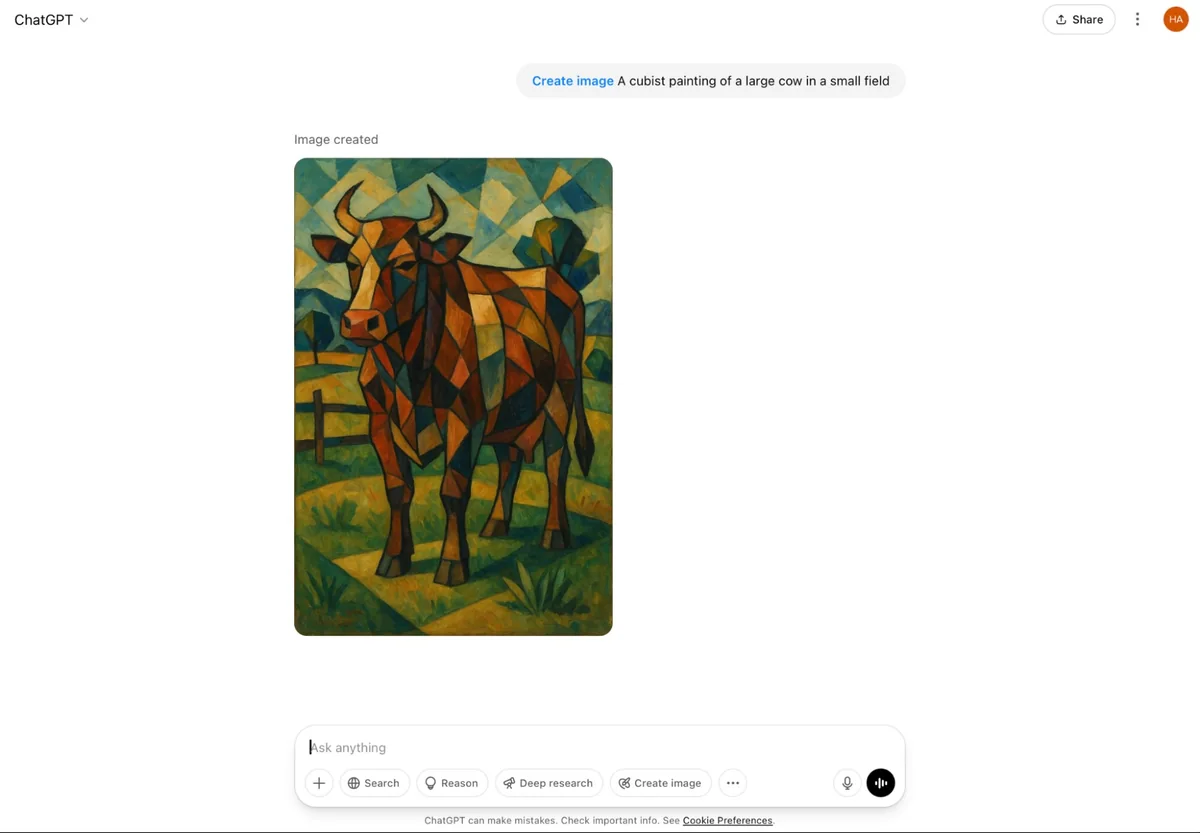
Until early 2025, when you asked ChatGPT for an image it forwarded the request to DALL-E 3, a separate model. That is no longer the case. Generation is native: it happens inside the language model, which therefore remembers the conversation context, can refer to images you uploaded and iterates without losing coherence. It is the difference between a translator passing a message to a painter in another room and a single person who draws while listening to you.
Anyone still searching for “DALL-E 3” therefore arrives at a place that no longer exists in practice. I reconstructed the whole story in what happened to DALL-E 3: in short, the DALL-E snapshots on the OpenAI API were removed on May 12, 2026, and on Azure the retirement happened even earlier. The current engine is called GPT Image. The version chain, verified against the official documentation, is this one.
| Model | When | What it brought |
|---|---|---|
| gpt-image-1 ("GPT-4o image generation") | March 2025 | first native generation, replaces DALL-E 3 |
| gpt-image-1-mini | October 2025 | budget version via API |
| gpt-image-1.5 ("ChatGPT Images") | December 2025 | more precise edits, faster generation |
| gpt-image-2 ("ChatGPT Images 2.0") | April 2026 | current model: reasoning on composition, more coherent images, higher resolution |
The current version, gpt-image-2 (presented by OpenAI as “ChatGPT Images 2.0”), is the one you use when you generate an image from the app or the website. It can plan the composition before drawing, produce several mutually coherent images in a single request and handle different formats. The thing that surprised me the most is text inside images, which I cover further down.
Instant vs Thinking: the two generation modes
ChatGPT Images 2.0 works in two modes, and it is useful to know which one you are using because both quality and waiting time change.
Instant mode is the fast one, available to everyone including the free plan. It generates in a few seconds and works great for most everyday requests: an illustration, a social graphic, a concept draft.
Thinking mode is slower but smarter: before drawing it analyzes the request, it can search the web for information to figure out how something it does not know should look, and it plans the composition. I use it when the image needs to be accurate (for example reproducing a real object or a scene with many coherent elements). Thinking is reserved for paid plans (Plus, Pro, Business).
The practical rule I follow: Instant to iterate quickly on ideas, Thinking once I have found the right direction and want the best possible result.
How to create an image with ChatGPT step by step (from PC)
Here is the exact flow, the one I follow every day.
Step by step from a computer
- Go to chatgpt.com and sign in (a free account is enough).
- Click “Create an image” under the message bar, or simply write “create an image of…” followed by the description.
- Write the prompt: describe subject, style, lighting, framing. The more specific you are, the better.
- Choose the format: Auto, square 1:1, vertical 3:4, panoramic. You can also ask for it in words (“in landscape format”).
- Send. The wait ranges from a few seconds to a couple of minutes depending on the mode and the load.
- Download the image, or keep chatting to edit it.
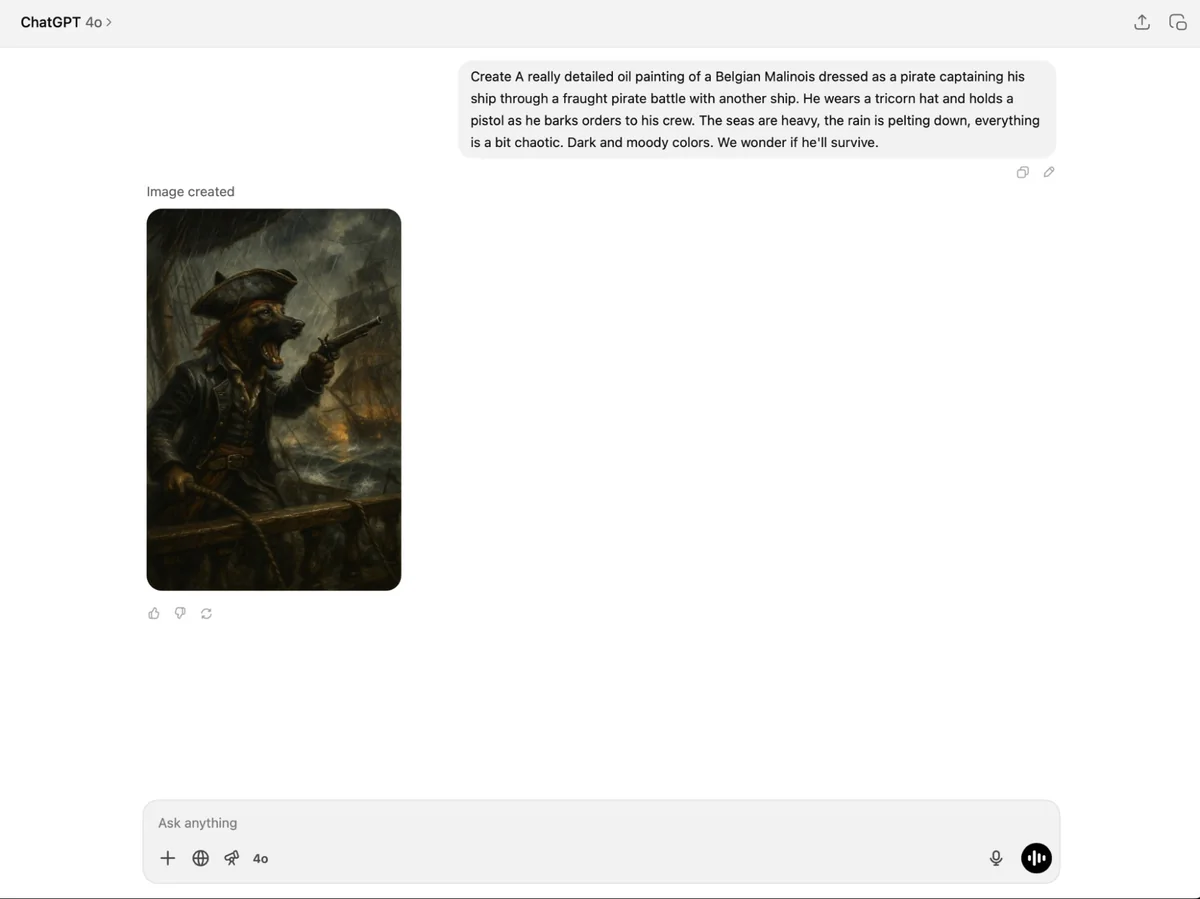
The point most guides forget: you do not need to nail the perfect prompt on the first try. The beauty of native generation is that you can start from something approximate and then fix it by talking. “Make the sky more dramatic”, “move the logo to the top right”, “remove the person in the background”. ChatGPT keeps memory of the image and applies only the change you ask for.
How to do it from a smartphone
From the app (iOS and Android) the flow is almost identical.
Step by step from your phone
- Open the ChatGPT app and tap the ”+” next to the message bar.
- Choose “Create an image” (or write the request by voice or keyboard).
- Enter the prompt or start from a suggested template.
- When the image is ready, tap “Edit” to work on a specific area or ask for changes in words.
- Save to your camera roll or share directly.
I often generate graphics on the fly from my phone while I am out, and the quality does not change compared to desktop: it is the same model underneath.
Editing: changing images with words (and with the Select tool)
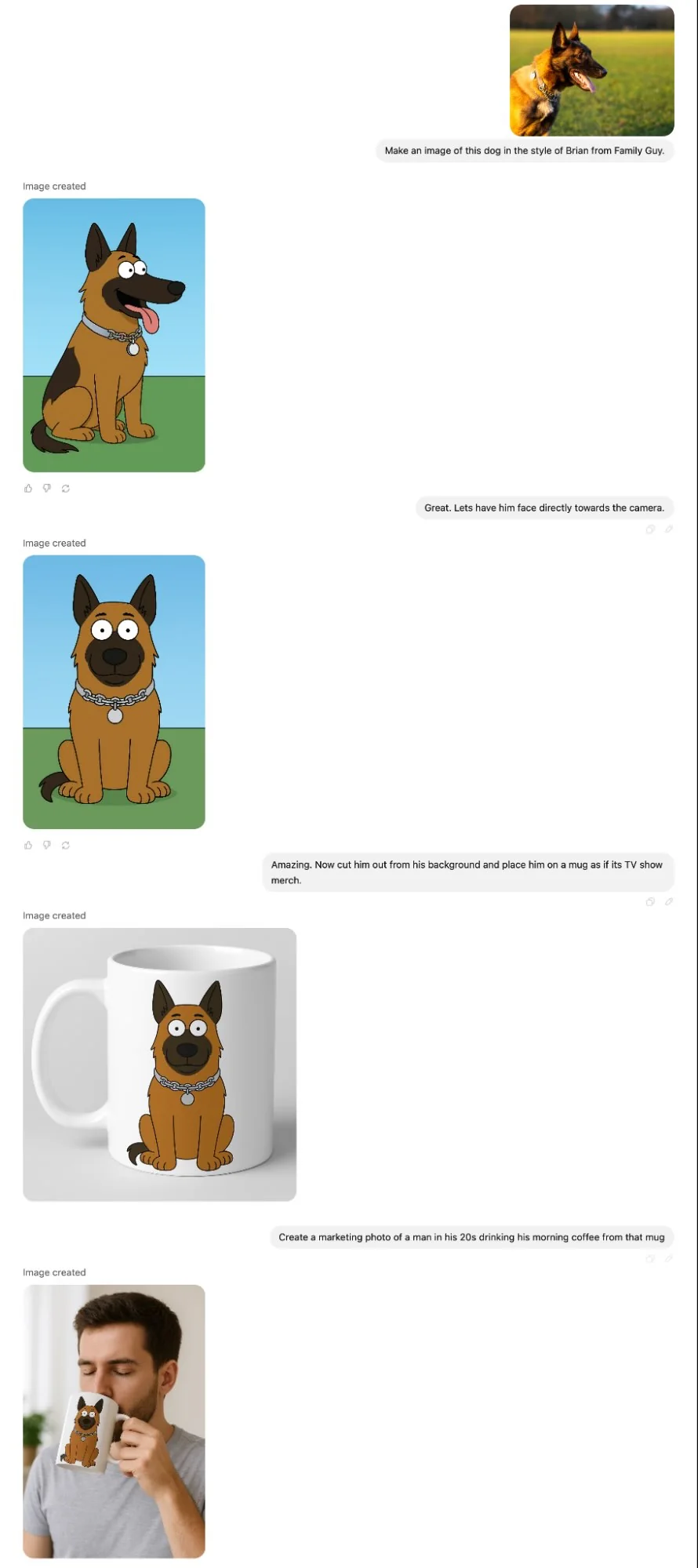
This is where ChatGPT shines, and it is the reason I recommend it to anyone who does not want to learn Photoshop. Editing is conversational: you describe the change and it applies it while preserving the rest of the image.
If the change concerns only one specific area, there is the Select tool: you highlight the portion to change (for example only a subject’s t-shirt) and ChatGPT works there without touching the rest. It is the equivalent of guided inpainting, but without masks you have to draw by hand.
The operations I use most often:
- Targeted edits: changing a color, adding or removing an object, fixing a detail.
- Version history: if an edit makes the image worse, I roll back to the previous version.
- Outpainting: extending the image beyond its original borders, useful when you need to go from a square to a panoramic format without regenerating everything.
- Format change: from 1:1 to 16:9 while keeping the subject.
Transparent background: logos, e-commerce and social
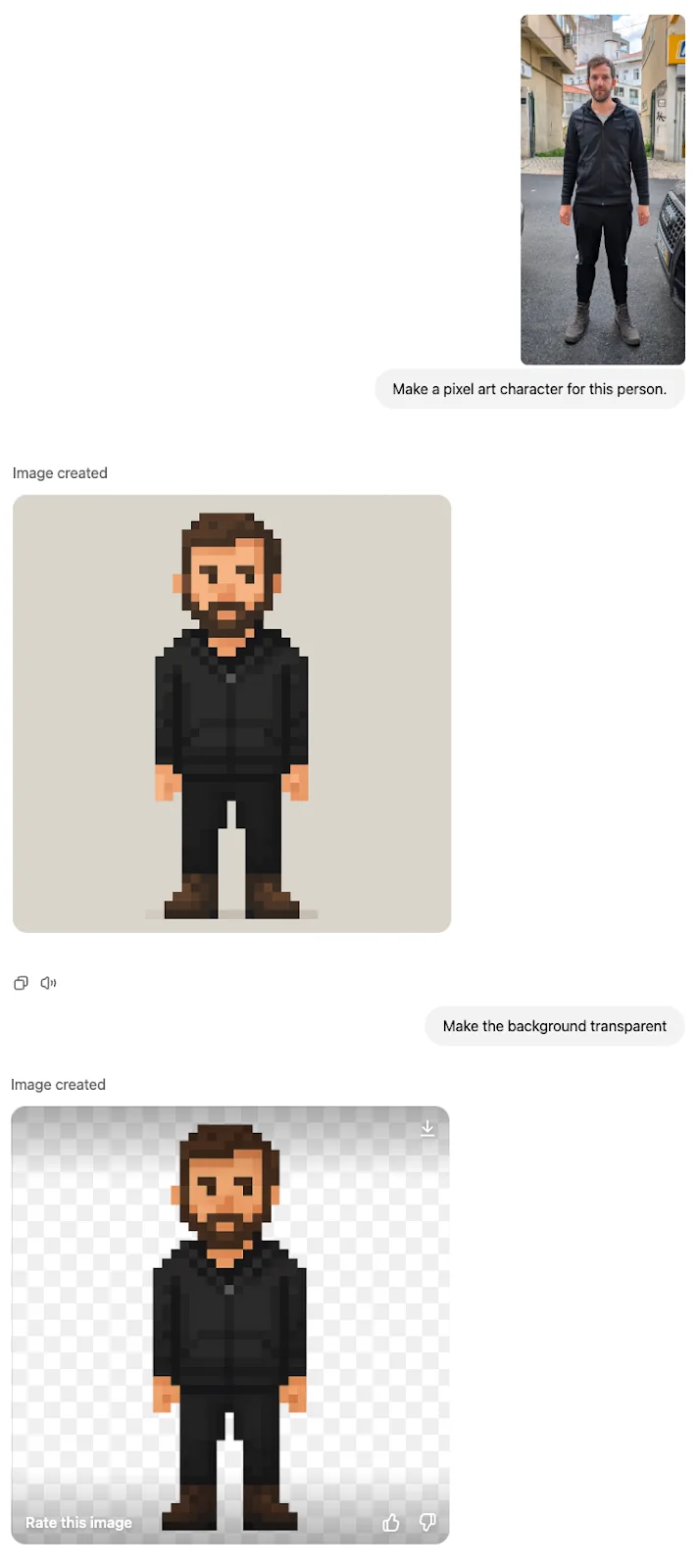
A feature that alone is worth the whole article: you can ask ChatGPT for a transparent background and download a PNG with an alpha channel. That means cutout images, with no white background, ready to be overlaid. I use them for:
- logo drafts and badges to place on any background;
- product images for e-commerce, where the subject needs to sit on white or on a clean product page;
- graphic elements for social and presentations, to be composed with other layers.
You just write it in the prompt (“with transparent background, PNG”) or ask for it afterwards, on the already generated image. A word of honest warning: for a final logo destined for print you still need a pass through a vector editor, because a PNG remains a raster. But for concepts, mockups and digital use it is perfect.
Text inside images (even in non-Latin alphabets)
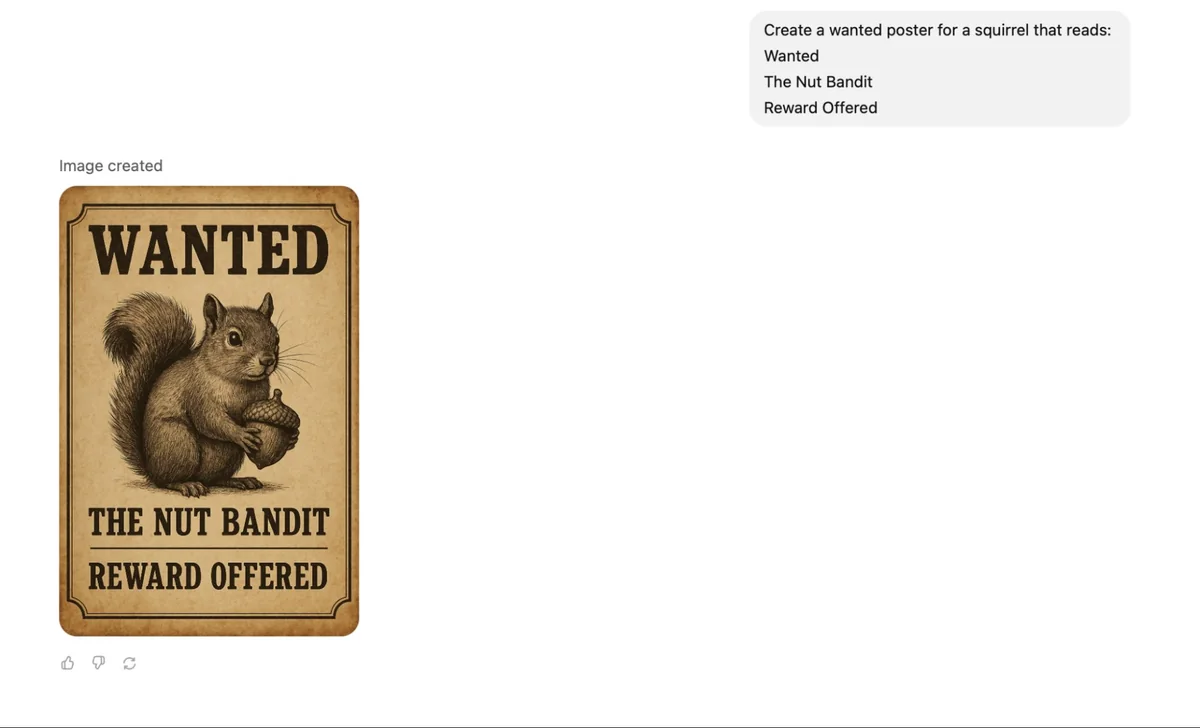
For years, writing correct words inside an AI image was a nightmare: crooked letters, made-up words, illegible signs. With GPT Image the game has changed. The text comes out readable and orthographically correct in the vast majority of cases, and in my tests it holds its own against the other generators on the market, often beating them. It also works with non-Latin alphabets.
That is why ChatGPT has become my go-to tool for posters, covers, promotional graphics and mockups where text matters. If you need to create a banner with a headline or a post with a quote, this is where you get the most reliable result. Checking is still good practice: on long sentences or unusual fonts it can still drop a character.
Free or paid? Free, Plus and Pro compared
Let us get to the question I receive most often: “but is it free?”. Yes, the free plan generates images. The point is understanding how much and with which limits, because here OpenAI is not very transparent, and I want to be instead.
There is no official number for the free plan limit. OpenAI does not publish a precise figure of images per day. From my experience and from what you read around, we are in the region of 2-3 images per rolling 24-hour window, but it is a variable value: it changes with server load and with updates. So treat it as a symbolic cap, meant for trying the service, not for producing at volume. If you need to generate a lot for free, the most generous alternative today is Gemini, which I compare in creating images with Gemini.
| Plan | Price (approx.) | Image limit | Modes and features |
|---|---|---|---|
| Free | 0 | about 2-3 per day (unofficial, variable) | Instant only, no Thinking or web search, slower |
| Plus | about $20 / €23 per month | many more per short window (unofficial) | Instant + Thinking, web search, priority |
| Pro | about $200 / just over €100 per month | effectively no practical limits | everything, maximum priority |
I deliberately say “about” for prices: the dollar list price is the US one, and euro amounts vary by region and over time. Always check the current price before subscribing. What matters is understanding the logic: Free to try, Plus if you generate regularly and want Thinking mode, Pro if you work with it all day and do not want to think about limits.
Commercial use and copyright: what you can really do with it
This is the section that almost no article takes seriously, and yet it is the one that keeps you out of trouble. I summarize what OpenAI’s terms of use say, but this is not legal advice: for important uses, get guidance from a professional.
The output is yours and you can use it commercially. Under OpenAI’s terms, the images you generate belong to you and you can use them for commercial purposes: marketing, advertising, product materials, merchandising, even resale. That is already much more than other free tools allow (Microsoft Copilot and Designer, for example, limit free plans to personal, non-commercial use).
There are, however, three caveats I always keep in mind.
- Copyright on purely AI-generated works is fragile. In the United States, an image generated solely by AI, without substantial human creative input, is hard to protect as a copyrighted work. In practice you might not be able to stop others from using it. If the image is central to your brand (a logo, a character), put human work on top of it.
- On Free and Plus plans your inputs may be used for training. OpenAI can use what you write and upload to improve its models. Do not upload sensitive, confidential or NDA-covered material on these plans.
- You are responsible for trademarks, faces and third-party characters. The fact that the model manages to generate a famous logo or a celebrity’s face does not mean you may use it. Legal responsibility for registered trademarks, image rights and protected characters stays with you.
Keep these in mind and ChatGPT becomes a serious production tool, not a toy.
Practical case: creating a social logo with a transparent background
I will take you inside a real flow, from start to finish, the kind I do for clients. Goal: a logo image for a social profile, clean, on a transparent background.
The end-to-end flow
- Verbal brief. “Create a minimalist logo for a specialty coffee brand called Nord. A stylized cup symbol reminiscent of a compass, warm terracotta and cream colors, clean modern style, transparent background.”
- First pass in Instant. I look at the proposals and pick the direction that works.
- Conversational corrections. “Make the compass more readable”, “use a single terracotta color”, “increase the space around the symbol”.
- Text, if needed. I add the brand name asking for a clean font, and I verify the letters are correct.
- Transparent background. I confirm the export as a PNG with an alpha channel.
- Formats. I ask for a square version for the avatar and a horizontal one for the cover, keeping the same symbol.
- Finishing. For final use I pass the file through a vector editor to clean up the edges and get a scalable version.
In a quarter of an hour I have a family of coherent graphics, ready for social. The secret is not a magic prompt: it is the conversation, meaning correcting one step at a time.
Tips for writing prompts that work
After thousands of generated images, these are the principles that make the difference.
- Describe like an art director, not like a search engine. Not “red cat”, but “a ginger tabby cat curled up on a windowsill, warm sunset light from the side, cozy atmosphere, realistic photography”.
- Specify lighting, framing and style. These are the three levers that change the result the most: “soft light”, “overhead shot”, “flat illustration style”.
- One idea at a time when correcting. If you ask for five changes at once, the model drops some of them. Go step by step.
- Give a reference when you can. Upload an image and ask for “in the same style” or “like this but at night”. Native generation makes great use of references.
- For text, put it in quotes. Writing exactly
with the text "OPEN"helps the model reproduce the right words. - Ask for variants. “Give me three different versions” lets you explore more directions in one go.
And above all: iterate. The first image is almost never the good one, and that is normal. Quality comes from the second, third, fourth correction.
The limits to know about
To be honest, here is where it still stumbles. Hands and complex anatomical details can come out imperfect. Very long text or text on unusual fonts sometimes loses a character. It does not replace a professional editor for pixel-precision work, and it is not vector software. And remember the free plan limit: if it “stops” generating, in all likelihood you have exhausted the daily quota, which resets after the 24-hour window.
None of these limits stops me from using it every day. You just need to know what to expect.
In conclusion
ChatGPT today is the easiest way to create images with AI, especially if you start from scratch: you talk, it draws, you correct by talking. It generates natively (DALL-E 3 is history), handles text inside images well, exports with a transparent background and lets you use the results even for work, with some legal caution. The free plan is enough to try it; to produce continuously you need Plus or Pro.
If you want to generate a lot without spending, also check out the strongest free alternative in creating images with Gemini, and for the full overview start from how to create images with AI for free.
Want images like these for your brand?
Do you want to learn how to use these tools for your brand, with a method and without wasting time on random trial and error? It is my daily work: images, logos, characters and AI commercials. Discover my services or write to me here: I will show you how to integrate AI into your visual production in a practical and sustainable way, or I will do it for you.
Leave a comment
Comments are reviewed and approved before they appear.