
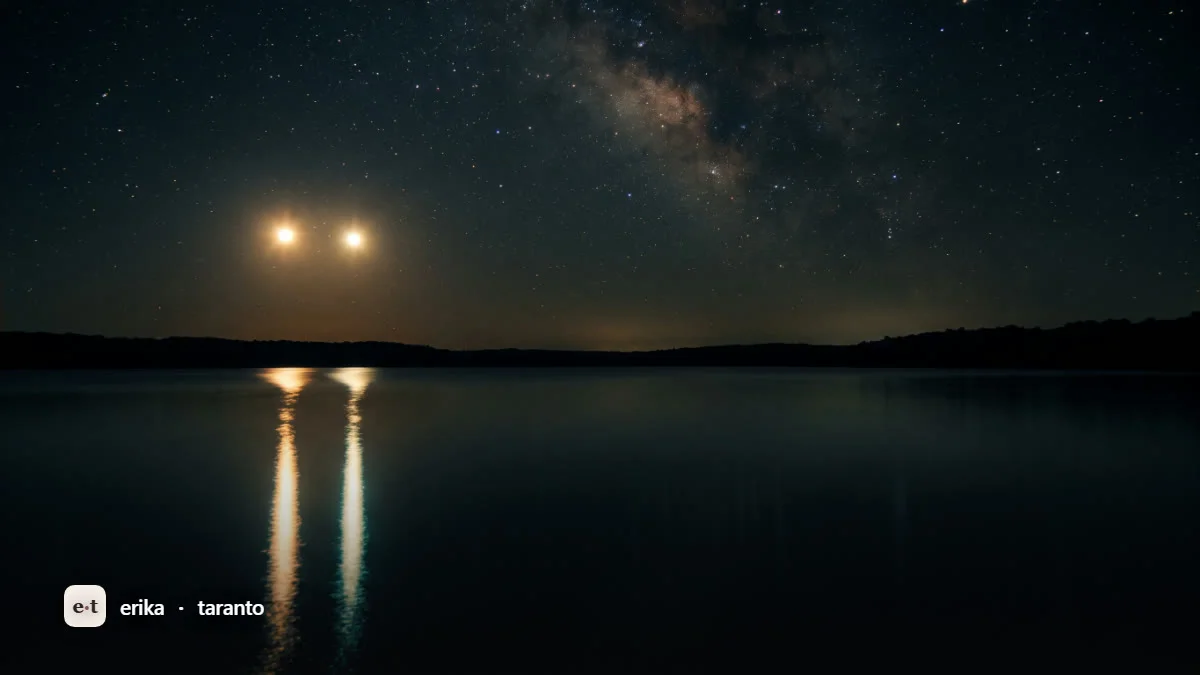
Gemini creates images directly in the chat: you write “create an image of…” and within a few seconds you receive the image, which you then refine by talking (“make it nighttime”, “remove the car in the background”). The default engine is Nano Banana 2, free with variable limits; for top quality there is Nano Banana Pro. It works in Italy.
I use Gemini to generate images almost every day, and it has become my first tool when I need to produce visuals fast without opening ten tabs. In this guide I show you exactly how it works, on web and mobile, with the prompt formula I use myself, how to edit uploaded images, how free it really is, and what you need to know about copyright and watermarks before using the outputs for work. All the data here is verified as of July 2026: I tell you this because these tools change every month, and the numbers on free limits are the most unstable thing of all.
If you are starting from scratch, this article is part of the broader guide on how to create AI images for free, where I compare Gemini with the other six tools I tested.
How Gemini generates images
Gemini does not “call” an external program to draw. Generation is native and multimodal: the same model that chats with you understands the text, generates the image and edits it within the same conversation. That is what makes the flow so natural, because you never switch from one app to another.
Until mid 2025, Imagen was running behind the scenes. Not anymore. The engine is the family nicknamed “Nano Banana”, meaning Gemini’s native image generation models. Let’s clear up the names right away, because this is the point where everyone gets confused:
- Nano Banana 2 (Gemini 3.1 Flash Image): the default model in the free app. Fast, great for everyday use, downloads at 1K resolution on the free plan.
- Nano Banana Pro (Gemini 3 Pro Image): the top of the line. Resolution up to 4K, crisp text, world knowledge via Search, consistency across up to five people, and blending of multiple images. On the free plan, however, it is heavily limited.
- Imagen: Google DeepMind’s old dedicated text-to-image family. It is being phased out (Imagen 3 already switched off, Imagen 4 closes on the Gemini API on August 17, 2026) and is no longer the engine behind the Gemini app. If you want to understand what it could do and why it is leaving the scene, I cover it in Google’s Imagen.
In practice: when you open Gemini and ask for an image, you are using Nano Banana 2. If you want the best, you switch to Nano Banana Pro. Imagen is out of the picture. To fully understand the model working under the hood, pricing and advanced use cases, I wrote a dedicated guide: Nano Banana Pro: pricing and how to use it.
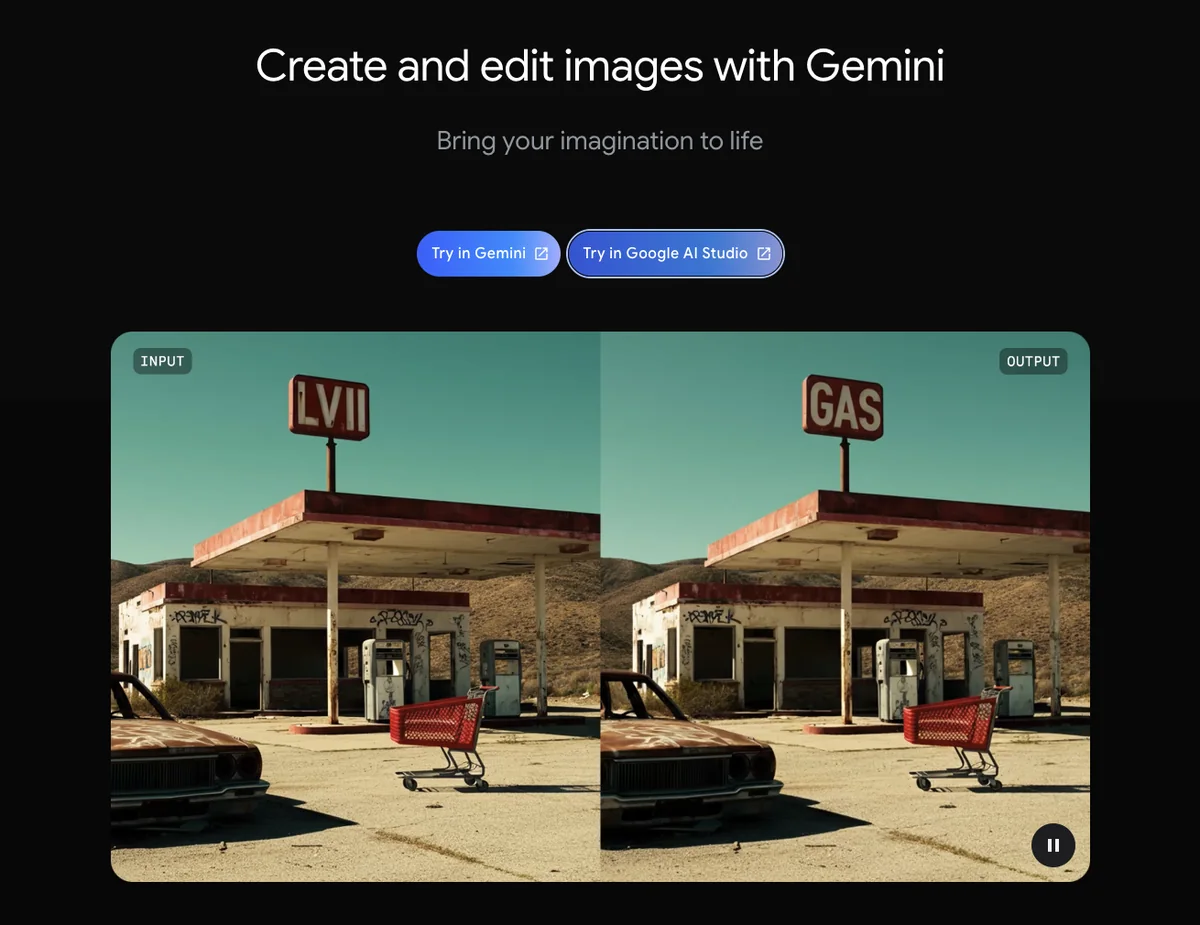
How to create images with Gemini step by step (web and mobile)
The beauty of it is that you don’t have to learn any syntax. Here is the exact flow I follow.
On the web (gemini.google.com):
- Go to gemini.google.com and sign in with your Google account (with verified age, I’ll get to that in a moment).
- In the bar at the bottom, write your request in natural language: “create an image of…”, “generate an illustration of…”, “draw…”. Alternatively, open the tools menu and select Create images (you’ll find it with the banana icon).
- Send. The image usually arrives in about ten to twenty seconds.
- Iterate by talking. You don’t need a perfect prompt on the first try: reply in the chat with “make it nighttime”, “add a dog in the foreground”, “watercolor style”, “vertical format”. Gemini regenerates while keeping the context.
- When you are happy with it, download the image at its original size (1K on the free plan, 2K with a paid plan).
On mobile (Gemini app for Android and iOS):
The flow is identical. Open the app, write the request or use the Create images button, iterate in conversation, then tap to download or share. A handy detail: you can also dictate the prompt by voice and upload a photo from your gallery to edit it.
One detail I appreciate: conversational iteration is Gemini’s real superpower. With other tools you start from scratch on every attempt; here you build on the previous result as if you were directing a photographer.
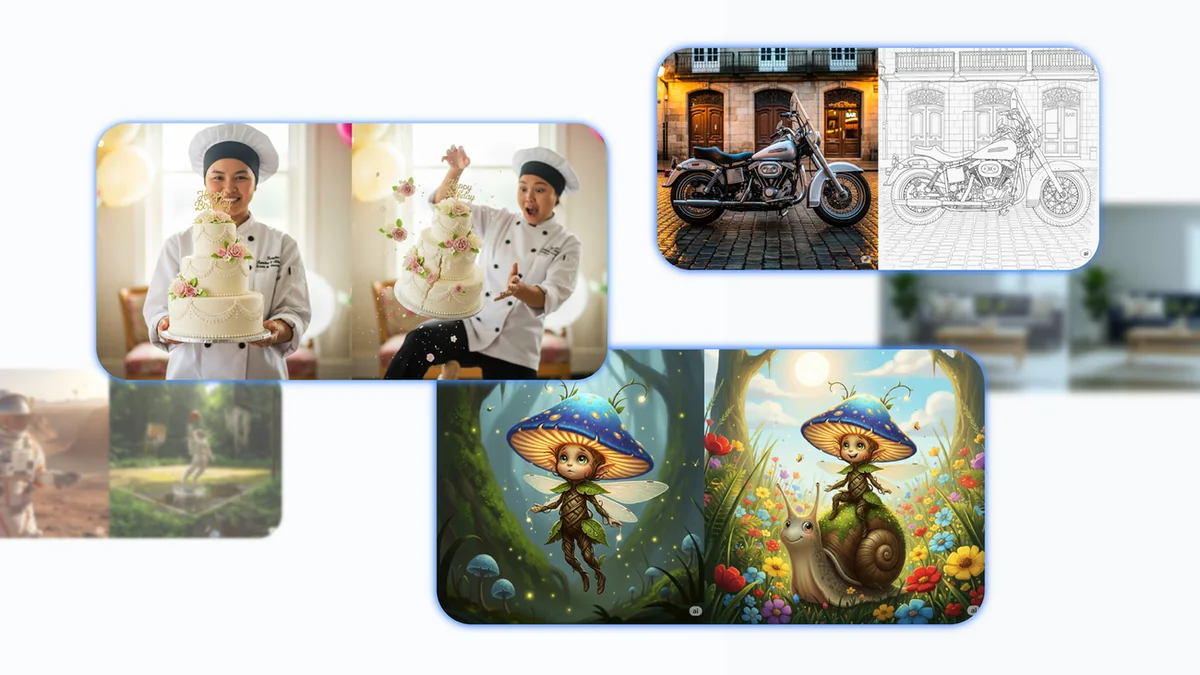
The formula for an effective prompt
A vague prompt gives a vague result. When I want something precise on the first try, I build the request by stacking six blocks. You don’t have to use them all or in this order, but keeping them in mind avoids the “generic AI” image.
Subject + Action + Setting + Style + Lighting/Framing + Aspect ratio
A concrete example you could write as is:
- Subject: a barista in a linen apron
- Action: pouring a cappuccino with leaf-shaped latte art
- Setting: in a minimalist café in Zurich, morning
- Style: editorial photography, warm tones
- Lighting/Framing: soft natural light from a side window, close-up shot
- Aspect ratio: vertical 9:16 format
Lined up, it becomes a single sentence: “Create an image of a barista in a linen apron pouring a cappuccino with leaf-shaped latte art, in a minimalist café in Zurich in the morning, editorial photography with warm tones, soft natural light from a side window, close-up shot, vertical 9:16 format.” You set the proportions by writing them right into the prompt: there is no dedicated menu, you ask for “square format”, “horizontal 16:9”, “vertical”.
My practical advice: start simple, look at what it gives you, then correct it in conversation. It is faster than writing a mile-long prompt in the dark.
Editing the images you upload
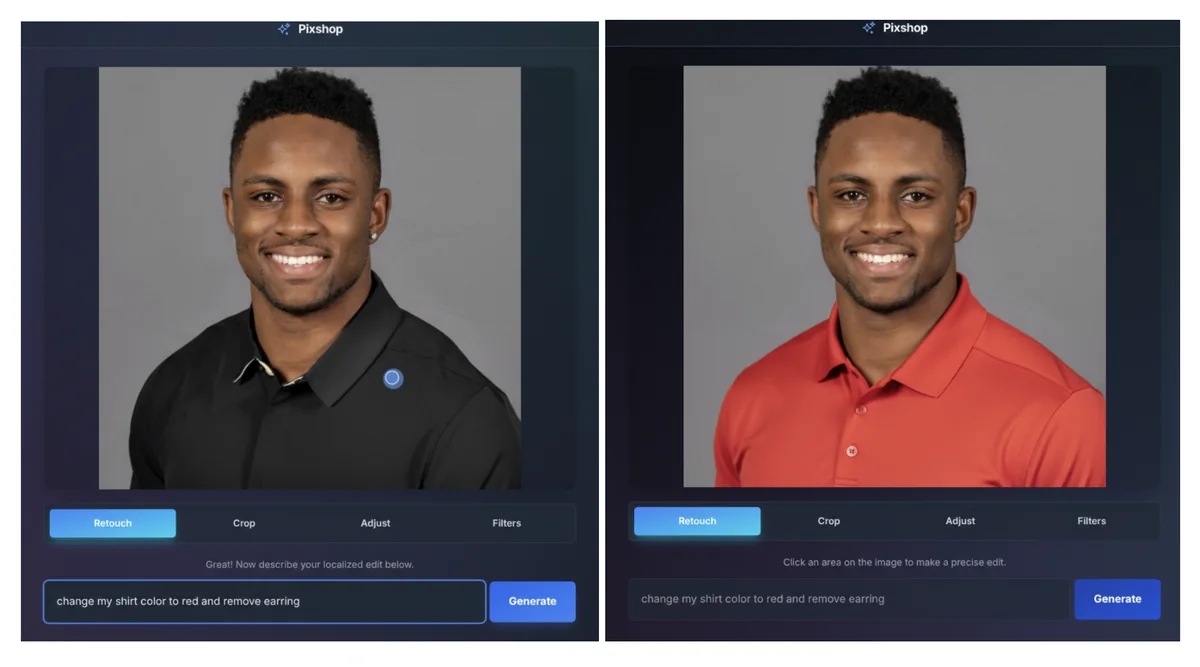
This is where Gemini stops being just a generator and becomes an editor. You upload one of your photos (or an image generated earlier) and edit it with words. The things I do most often:
- Remove objects or people: “remove the sign on the right”, “remove the person in the background”.
- Change or remove the background: “give it a white studio background”, “replace the background with a beach at sunset”.
- Change the lighting and the mood: “make the light warmer and more golden”, “turn the scene into nighttime”.
- Style transfer: “make it watercolor style”, “give it a 1950s illustration look”.
- Colorize and retouch: adding color to a black-and-white photo, changing the color of a piece of clothing, fixing small details.
All of it without photo editing software. For social media work it is a step change: a retouch that used to require Photoshop is now a single sentence.
Character and brand consistency
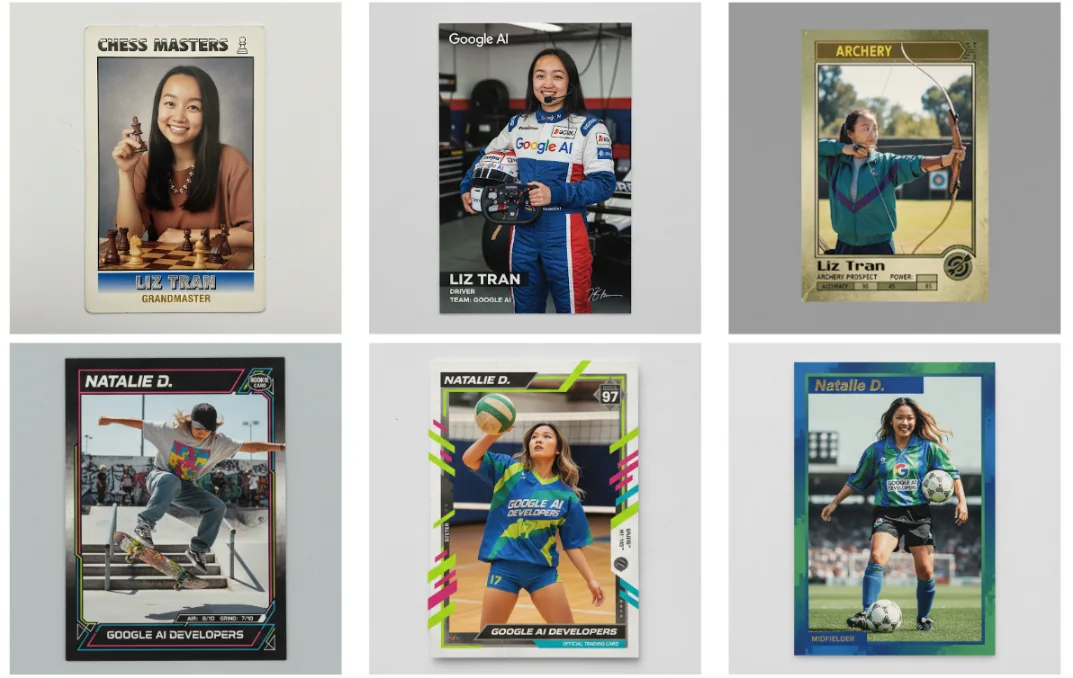
One of the historical problems of AI generators is that the same character changes face in every image. With Nano Banana Pro this improves a lot: it keeps consistency across up to five different people and can blend up to fourteen reference images into a single scene. In practice you can keep the same face, the same product or the same brand palette across a series of visuals, which is essential if you are building a campaign or a carousel.
The method I use: I generate or upload the reference image of the subject, then I ask for new scenes “with the same person” or “with the same product”, describing only what changes. You get the best consistency with the Pro model, so for serious brand identity projects it is worth switching to a paid plan.
Text inside images
Writing legible words inside an image has always been AI’s Achilles’ heel. Gemini, especially with Nano Banana Pro, handles crisp and multilingual text well: posters, posts with a sentence, packaging mockups with the product name. It is not infallible on long blocks, but for a headline, a claim or a brand name on a poster the result is often ready to use. I still recommend always proofreading: on longer texts it can still get a letter wrong.

Resolution, downloads and aspect ratios
When you download, the image comes out at the model’s original size. On the free plan we are talking 1K. With a paid plan you unlock 2K, and Nano Banana Pro goes up to 4K (for example 5632x3072 pixels), useful if you need to print or work on large formats. Aspect ratios, as mentioned, are requested in the prompt. If you need an image in multiple formats, ask Gemini to regenerate it in the new aspect ratio instead of cropping it by hand.
Plans and limits: how free is it really
This is the part where I have to be honest with you: the daily limits of the free plan are the most unstable data point of all. Google does not publish stable official numbers and the figures change over time. The ones below are indicative and verified as of July 2026, do not take them as guaranteed.
| Plan | Images per day (indicative) | Model and resolution |
|---|---|---|
| Free | Nano Banana 2: variable, roughly a few dozen/day. Nano Banana Pro: reduced, about 2/day | Default Nano Banana 2, 1K downloads |
| Google AI Pro (euro pricing to be verified) | about 100/day | Nano Banana Pro, up to 2K/4K |
| Google AI Ultra | much higher (sources give different figures) | Maximum resolution + Flow video tools |
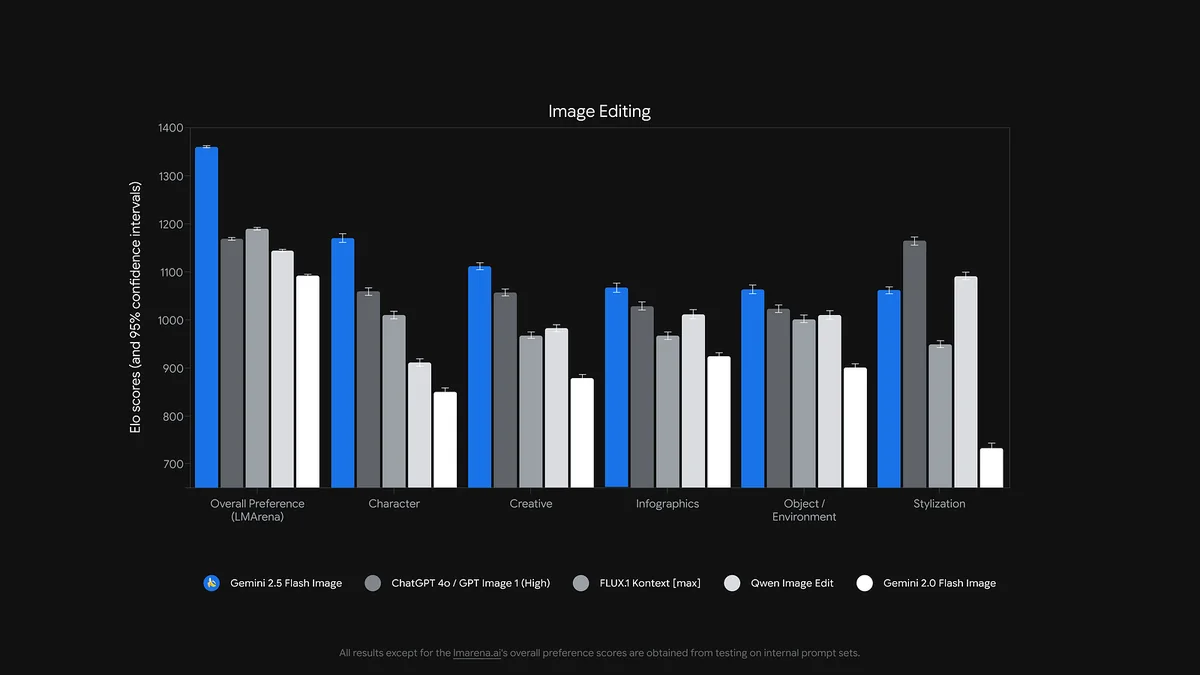
One important detail: in December 2025 the free limit of Nano Banana Pro was reduced to about two images per day. That is why, if you need the top model with continuity, the free plan is not enough. On the euro prices of Google AI Pro and Ultra: always check the official page, because they vary by country and over time, and I don’t want to give you a figure that will be wrong in a month.
SynthID: the invisible watermark
Every image generated with Gemini carries SynthID, Google DeepMind’s watermarking system. It is an invisible mark embedded in the pixels, plus (on the free and Pro plans) a visible indicator. Its purpose is to signal that the image is AI-generated.
There is also the SynthID Detector: you upload an image and it tells you whether it contains the watermark, that is, whether it is probably AI-generated. It is a useful tool for transparency, which is becoming increasingly relevant. Remember one practical point: removing or altering SynthID violates Google’s terms of service.
Commercial use and copyright in Italy and the EU
A necessary premise: this is not legal advice, and for an important client project it is worth having the terms checked by a professional. That said, here is the picture as I understand it in July 2026.
Under the Gemini apps terms, the outputs you generate belong to you and commercial use is normally allowed, without exclusivity. There are, however, some “buts” you need to know:
- Third-party material: if protected elements appear in the result (trademarks, famous characters, other people’s works), they stay protected. The fact that AI generated them does not give you the rights.
- SynthID: removing the watermark violates the terms.
- Data privacy on the free plan: on the free plan your prompts can be used for training. For client work, where confidentiality matters, consider a paid plan.
- Copyright in the EU: the status of a work purely generated by AI, without substantial human creative input, is still uncertain in Europe. Do not take it for granted that you can claim full copyright on it.
My practical rule: for generic social and marketing content, Gemini works just fine. For assets where you want strong rights and confidentiality, step up a level (paid plan) and document your creative input.
Why Gemini won’t create images for you (troubleshooting)
If you wrote the prompt and nothing happens, in the vast majority of cases the reason is one: age verification on your Google account. Image generation requires an account with verified age, and until it is verified the feature stays locked.
What to do, in order:
- Verify your age in your Google account settings.
- Wait. After verification it can take up to 24 hours for the feature to activate. That is normal, it is not a bug.
- On the age requirements the official sources partly disagree (some indicate a minimum threshold for generating and a higher one for editing images). I don’t trust myself to give you a hard number: check Google’s up-to-date support page for your case.
- If age is sorted, check other causes: the prompt might violate the policies (rephrase it), you might have reached the daily limit (try again later), or the service is temporarily overloaded.
Is Gemini available in Italy?
Yes. Image generation with Gemini is available in Italy, including images that contain people. The old European restrictions that blocked faces have been overcome. You only need a Google account with verified age. This is a recent and positive change: until not long ago, generating people was limited in the EU.
In short
Gemini is today the most immediate AI image generator you can use for free in English: you talk, it draws, you correct it in conversation. Nano Banana 2 covers everyday use, Nano Banana Pro raises the bar when you need quality, text and brand consistency. Remember the three points that really matter: free limits are variable, every image carries the SynthID watermark, and for commercial use it is worth reading the terms before delivering to a client.
Want images like this for your brand?
Do you want to learn how to use them seriously for your brand, with a workflow that holds up over time and doesn’t trip you up on copyright and limits? I work with them every day, from brand imagery to AI commercials. Discover my services or write to me here.
Leave a comment
Comments are reviewed and approved before they appear.