
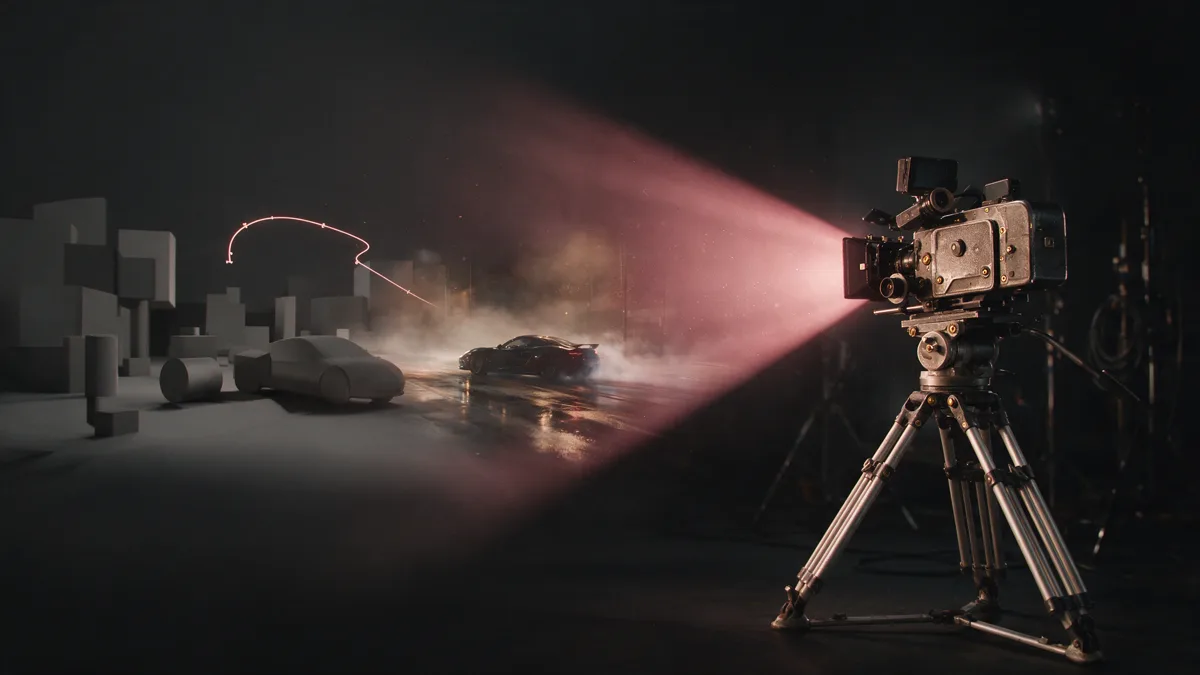
Higgsfield has released Higgsfield for Blender, the free plugin that brings its models inside Blender and adds the bridge that lets an AI assistant build the scene. You describe the scene, the assistant builds the 3D blockout with camera, positions and timing; you export a reference video without spending a single credit; then Seedance 2.5 generates the final video on that movement. The gain is twofold: director-level control over every shot and far fewer credits burned on blind generations. After GPT-6 Astra arrived in Higgsfield's MCP workflows, I tried it as copilot: it is the piece that was missing.
Anyone who makes videos with AI knows the routine: you write the prompt, hit generate, cross your fingers. The model hands you something beautiful that resembles your idea, but the camera wanders, the characters change places between cuts, and to get the shot you had in mind you regenerate five, ten times. Every attempt costs credits. I use Higgsfield every day for my work, and this lottery is the price you pay when all the directing lives inside one prompt sentence.
At the end of August, that price collapsed. Higgsfield released Higgsfield for Blender, the free official plugin. The idea is simple to say and big to watch: first you block the scene in 3D, camera and timing included, without spending anything. Then the video model receives a plan that is already decided, instead of one sentence and some luck. No more dice.
The problem: without directing, text-to-video rolls the dice
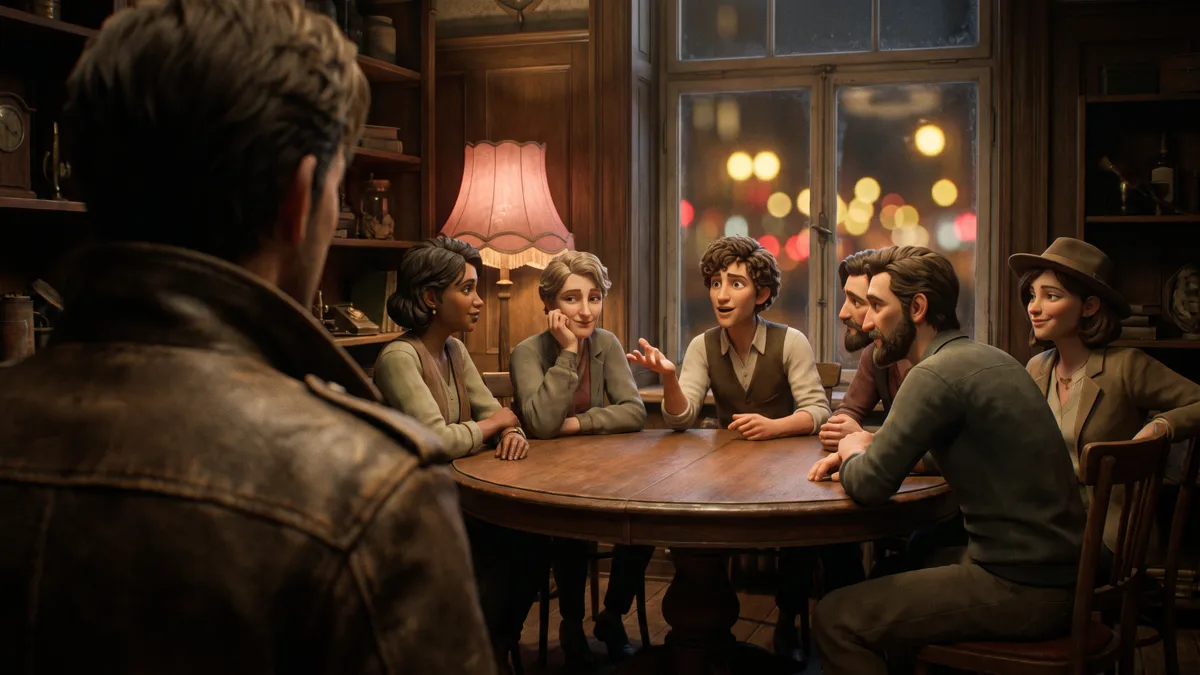
Generative video models have a structural weak point: spatial orientation. They work beautifully on a single shot, but the moment you need continuity, who sits where, who looks at whom, which way the camera moves, they start making mistakes. And the mistakes cannot be corrected: you regenerate. A single dialogue scene with six people around a table, generated with the prompt alone, is enough: people swap places at every generation, the 180-degree rule breaks and the scene cannot be cut. The final bill: almost 5,000 credits burned without ever getting the right shot.
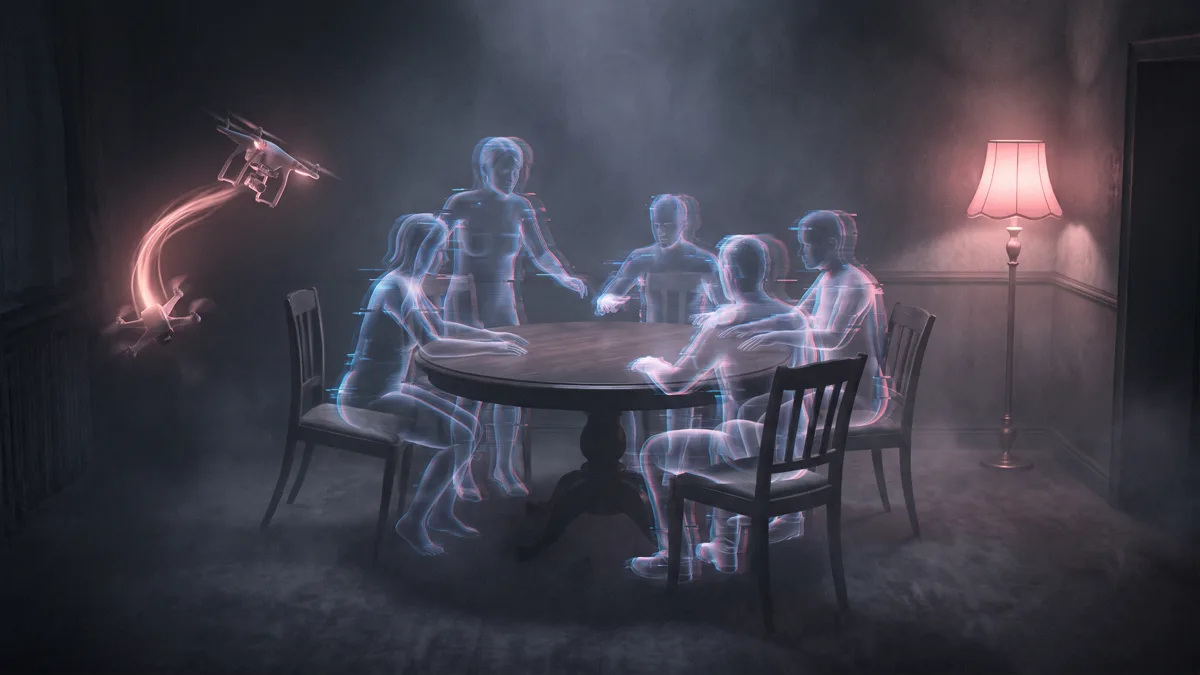
It is the same reason real films get prepared before the cameras turn on. In production it is called pre-vis: whole teams build simplified versions of the scenes, with camera positions and framing, before anyone touches a set. Until now, in the world of AI video, that step did not exist: you went from idea to generator, and the generator made the decisions.
What Higgsfield for Blender is
Higgsfield for Blender is a free add-on for the 3D graphics program Blender (it requires Blender 5.1 or later, on Windows or macOS) that brings Higgsfield’s models directly into the viewport: generation of scenes, clean-topology meshes, rigged characters, images and video, with the credit cost shown on the button before you confirm each generation. For images it uses models like Nano Banana 2, GPT Image, Seedream 5.0 Pro and Z Image; for 3D models, Meshy 5; for video, Seedance 2.5. Assets land in the open scene, not in a separate window: what you generate is already inside your project.
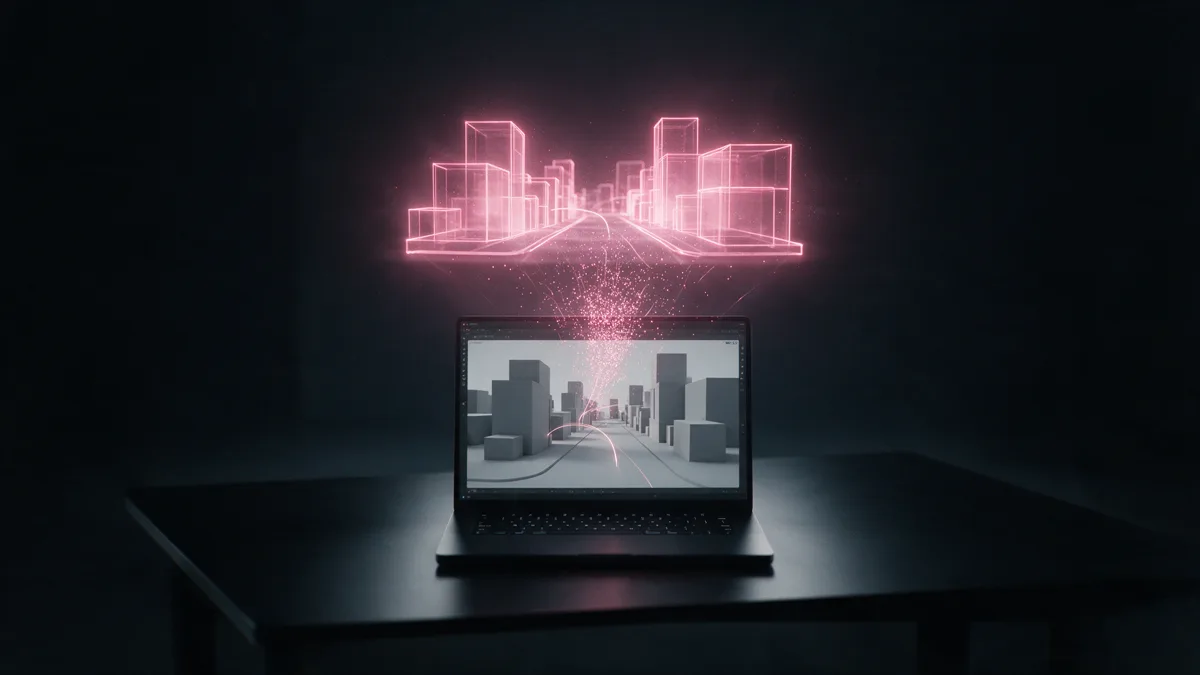
The new part, the one that changes how you work, is the Higgsfield MCP bridge: a connector (bridge.higgsfield.ai/mcp) that lets an AI assistant work directly on the open scene in Blender. You describe the scene in chat, the assistant builds real, editable 3D objects, and the bridge forces it to respect the rules of 3D graphics: no fake backdrops that fall apart at the first adjustment. And there is a detail I love: to define a natural camera move you can physically move your phone, and that movement ends up in the scene.
How the workflow works, step by step
The structure is always the same and you can learn it in an afternoon. You need Blender, a Higgsfield account and a connected AI assistant.
- Installation. You download the plugin from the Higgsfield website, copy the bridge address and add it to your assistant’s connectors, then drag the plugin into Blender and log in. From there a Higgsfield bar appears in the viewport.
- Building the scene. You describe what you want: a corridor, a person walking down it, the camera following them. The assistant builds the scene with real 3D objects, which you can correct in chat or by hand.
- Directing. This is where the difference lies: instead of writing “cinematic camera” in the prompt, you hand over a shot list like you would to a real camera operator. Orbits, rails, cuts, who speaks and who listens. Want to change an angle? You drag a control point in Blender, without rewriting anything.
- Reference video. From the camera view you export a playblast: an MPEG-4 video in 1920x1080 at 24 fps, ready in about fifteen seconds. This step consumes no credits.
- Prompt written from the blocking. You attach the playblast to the assistant and ask for a prompt for Seedance 2.5 that follows the camera second by second. The assistant built the scene itself: it knows what is in every shot.
- Generation. Here you choose the route. From the plugin panel you paste the prompt, choose Seedance 2.5 and generate without ever leaving Blender. If the assistant is connected to Higgsfield via MCP, generation starts straight from the chat: no copy-paste, you decide the shot in conversation and the assistant sends it to Seedance. In my test the plan lands where I put it: tilts, orbits and profiles in the right place. When something slips, you fix the blockout or the prompt and regenerate that one shot, without starting over.
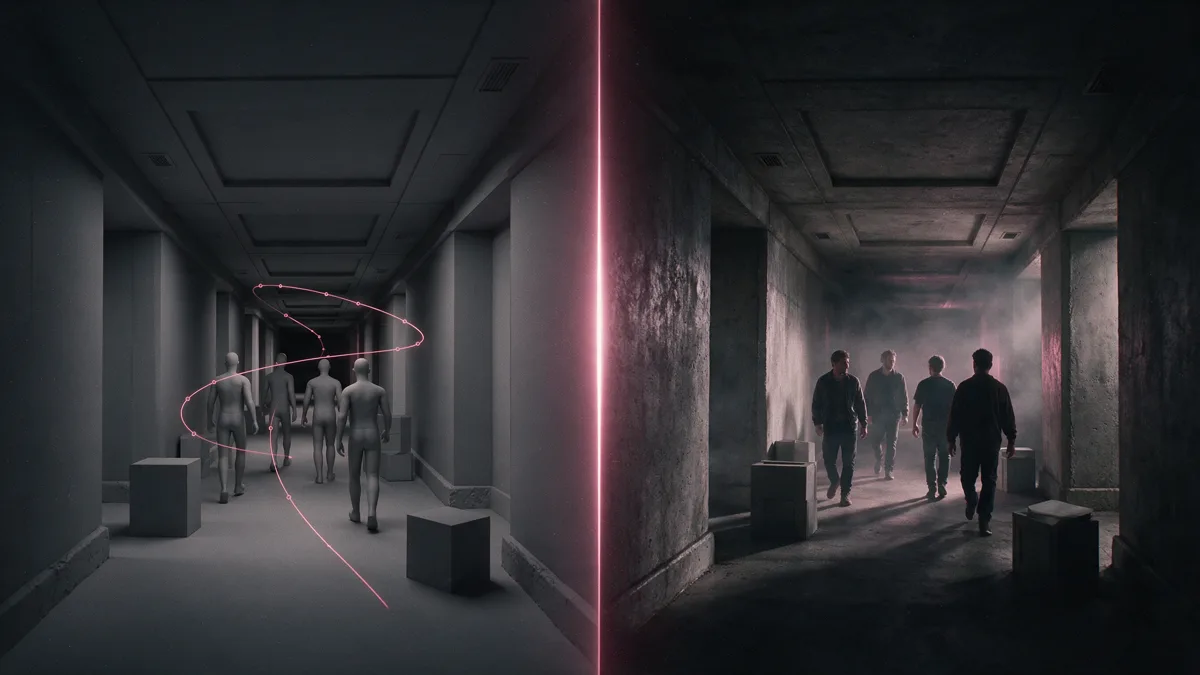
The comparison that settles the question is the same prompt with and without blocking. With blocking the shot arrives on the first or second generation. Without it, the camera spins on itself, the character shrinks from one shot to the next and the requested movement disappears. Identical prompt, identical model: the only difference is that in one case the directing had already been decided.
Five cases, from the long take to the ad
Five use cases in order of difficulty that, together, cover almost everything a video producer needs.
- The long take. A corridor, a person, the camera follows and then rises, orbits behind them and closes from above, all in one continuous movement. Blocked in Blender, executed by Seedance 2.5 on the same timing.
- The group dialogue, the hardest case for AI: six people around a table, four cuts, thirty seconds. With blocking the positions stay put, every line lands on the right face, and the assistant even writes the dialogue, because it knows every shot it built.
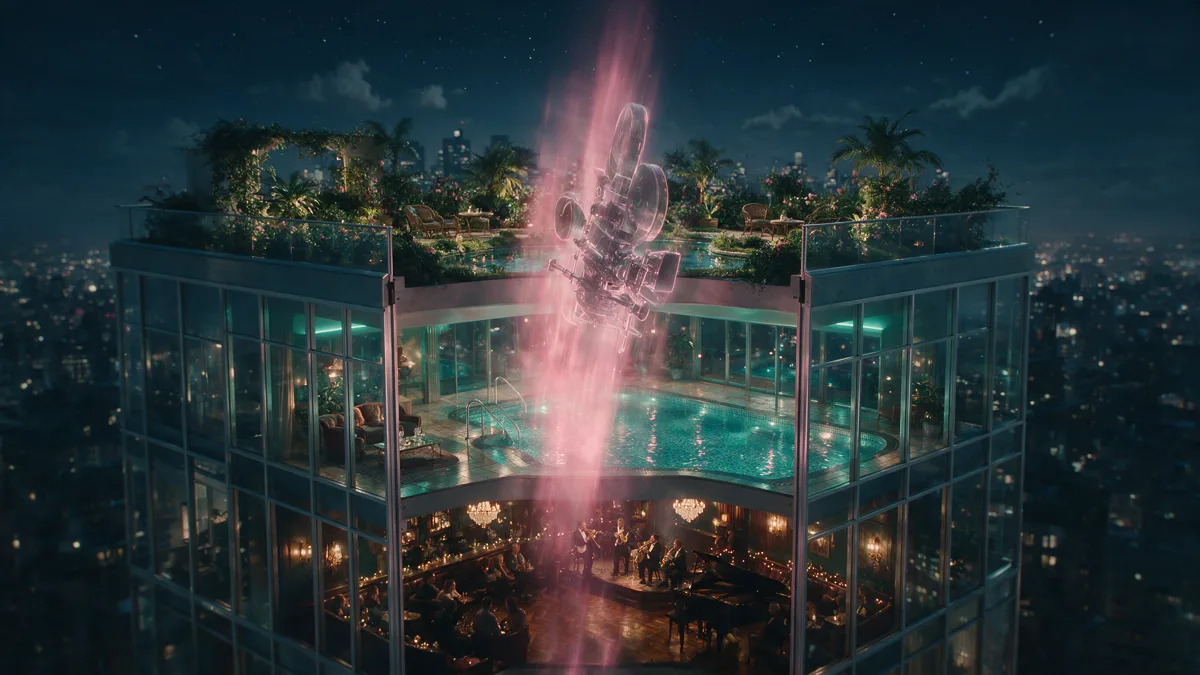
- Viral camera moves. The infinite orbit wrapping around the scene, the floor rise climbing through the floors of a building, the robot arm that whips the framing and locks it dead. Stuff that used to require cranes, a crew or hours of keyframes: here you describe it, watch it in the blockout and adjust it by dragging control points.
- The hypermotion spot. The can is a cylinder, the ice cubes, the lemons spheres: no faces or hands to get wrong, only camera and timing. And when the client asks for changes, you re-block the scene instead of rewriting the prompt and regenerating blind.
- The car commercial: nineteen shots in thirty seconds built with four assets, two characters, the car and the location. The case that shows how far the method scales.
The prompt trick in two halves
There is also an idea that is useful for anyone working with clients, and it holds outside this workflow too. Every prompt is made of two layers: the structure, meaning the reference video, the cuts, the camera, the timing, which never changes, and the style, meaning the look of the world, which you change at will. Same edit, three different worlds: a 2.5D style halfway between drawing and 3D, one in ink on paper, one like a 3D toy world. Every shot and every camera drift line up frame for frame in all three versions, because the structure underneath is identical.
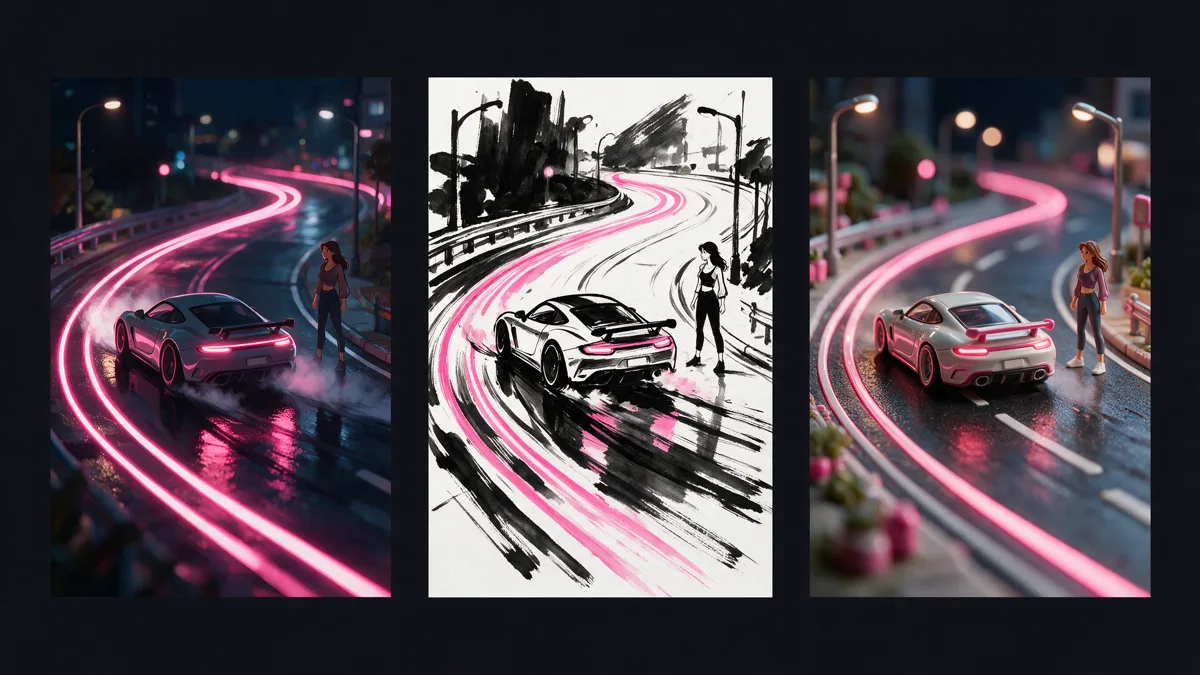
If you pitch to clients you have already figured out the play: you can present three visual worlds in a day, the client picks their favorite and the edit is already approved, because the foundation has not changed. It is the exact opposite of the workflow where every revision request puts everything back on the table.
Lock the scene in 3D, lock the camera, and have the AI execute your plan instead of rolling the dice.
Boiled down to one sentence, it is the entire mindset shift: the AI no longer decides the directing. It executes it.
GPT-6 Astra in the workflow: the test that changed everything
In September the picture widened: Higgsfield now documents GPT-6 Astra, the OpenAI model that powers ChatGPT, in its MCP workflows, with the model handling reasoning, code and orchestration while Higgsfield provides the generation tools. On paper it sounds good. In practice, what counts is what happens when you try it.
I tried it, and the workflow becomes a different thing. Astra connected via MCP builds the scene I describe, rearranges the objects when I tell it what is wrong, writes the generation prompt following the blocking second by second, and gets my change requests right on the first try. The concrete gain is twofold. First: control. Composition, positions, camera, timing: everything I see in the viewport before hitting generate, I decided, and I decide it in a chat, in plain language. Second: credits. All the iterations, the second thoughts, the cut tests happen at zero cost inside Blender; I spend credits only on generations that already have an approved plan. Anyone coming from pure text-to-video knows what that means: from five or ten blind generations down to one or two aimed ones.
An honest clarification is needed, because this is the point where many people confuse the pieces: the plugin, the MCP workflows and the bridge that connects the assistant to the open scene are distinct things, and the official guides treat them separately. The official bridge example uses Claude; whether the client you choose supports the same chain has to be verified in your own setup. In my test Astra worked with my combination of client and annotated versions: it is my experience, not a universal guarantee.
The piece that makes this flow mine, though, is not the model: it is the brain I keep on my computer. It is my rules for directing, editing and style, with all the corrections from these years. The assistant rereads them from scratch before every prompt: what comes out is already written the right way, with the lessons from previous runs baked in. I cannot remember everything every single time; the machine can. Once it is set up, it works for me: it knows how I work, and it never forgets. The prompting method behind those rules is told in full in my guide to creating videos with AI.
If this kind of work interests you, Blender, Higgsfield and the brain on your computer that learns your method, write to me or request a quote. And if you want to see where these experiments end up, subscribe to the newsletter: the behind-the-scenes bits land there.
Astra or Claude: what the people who use them say
In the communities opinions split. Some report having moved their work from Claude to Astra, some use both and some stay on Claude for writing; in another discussion one user reports similar results between Astra and Fable 5.1, in Blender too. These are personal experiences, not benchmarks: nobody has published comparative tests with shared prompts. And the most viewed video on the Astra plus Blender combo is sponsored by Higgsfield: I watch it as a demo, not as proof.
My position after the test: which model acts as copilot matters less than the fact that the directing lives in Blender. Anyone looking for AI in Blender today is not hunting for the perfect assistant: they need to stop generating blind. The blockout is the piece that holds any copilot together.
What it really costs
The plugin is free and downloads from the Higgsfield website. The bill is in the generations: images, 3D models and videos consume credits from the same account as the web platform, and the cost of each generation is shown on the button before you confirm, so you always know how much you are spending. The important part is where you do NOT spend: building the scene, animating the camera, trying out cuts and timing, and exporting the reference videos costs nothing. Everything you used to throw away on wrong generations, you now fix at zero cost before generating.
Plan prices change over time, so for the current numbers I will point you to the official website: what stays fixed is the principle: you prepare everything at zero cost and generate only the shots that are already decided.
Why I am testing it
I will be honest with you: a year ago I needed exactly this tool. I come from the mini-films made with these models, and I know exactly what it costs to keep consistency from one shot to the next when all the directing lives in the prompt. I installed the plugin and I am testing it, first on my own and now with Astra as copilot, and I am glad about this: it keeps the consistency, the timing and the cameras I want. On directing, compared to a year ago, there is now a level of control that simply did not exist before, and I want to see if it holds up on everything I produce.
The three things I want to verify with my scenes: whether character consistency truly holds across cuts in dialogues, how much the production of a spot speeds up when the client requests changes halfway through, and how many credits I save in my productions compared with my current workflow. If it holds up, this becomes the standard way I prepare everything I generate.
If you make AI videos too, the right time to try it is now: the workflow is new, almost nobody is using it yet, and whoever learns it first starts ahead. If instead you would rather have someone who works with it every day use it for your brand, that is literally my job: see how I work.
Sources
- Higgsfield, official plugin page: higgsfield.ai/plugins/blender
- Higgsfield, “Higgsfield for Blender: Features, Installation, and MCP Bridge Setup”: higgsfield.ai/blog
- Higgsfield, “Higgsfield MCP on GPT-6 Astra: Introducing Higgsfield Games 2.0”: higgsfield.ai/blog
- OpenAI, official GPT-6 Astra model page: developers.openai.com
- Higgsfield AI, “How To Save AI Credits With Higgsfield + Blender” (official video tutorial, August 28, 2026): youtube.com
Leave a comment
Comments are reviewed and approved before they appear.